> ## Documentation Index
> Fetch the complete documentation index at: https://docs.usebila.com/docs/llms.txt
> Use this file to discover all available pages before exploring further.
# Wallet-to-Wallet Transfers
> Move funds between your Main Wallet and Sub-Wallets instantly - for free.
Wallet-to-wallet transfers move funds between your **Main Wallet** and any **Sub-Wallet** instantly, at no cost.
These are internal transfers - no mobile money or bank details are needed.
***
## Prerequisites
Before you begin, make sure you have:
* Admin access to your Bila dashboard
* Sufficient available balance in the source wallet
* At least one active Sub-Wallet on your account
***
## Understanding Your Wallet Structure
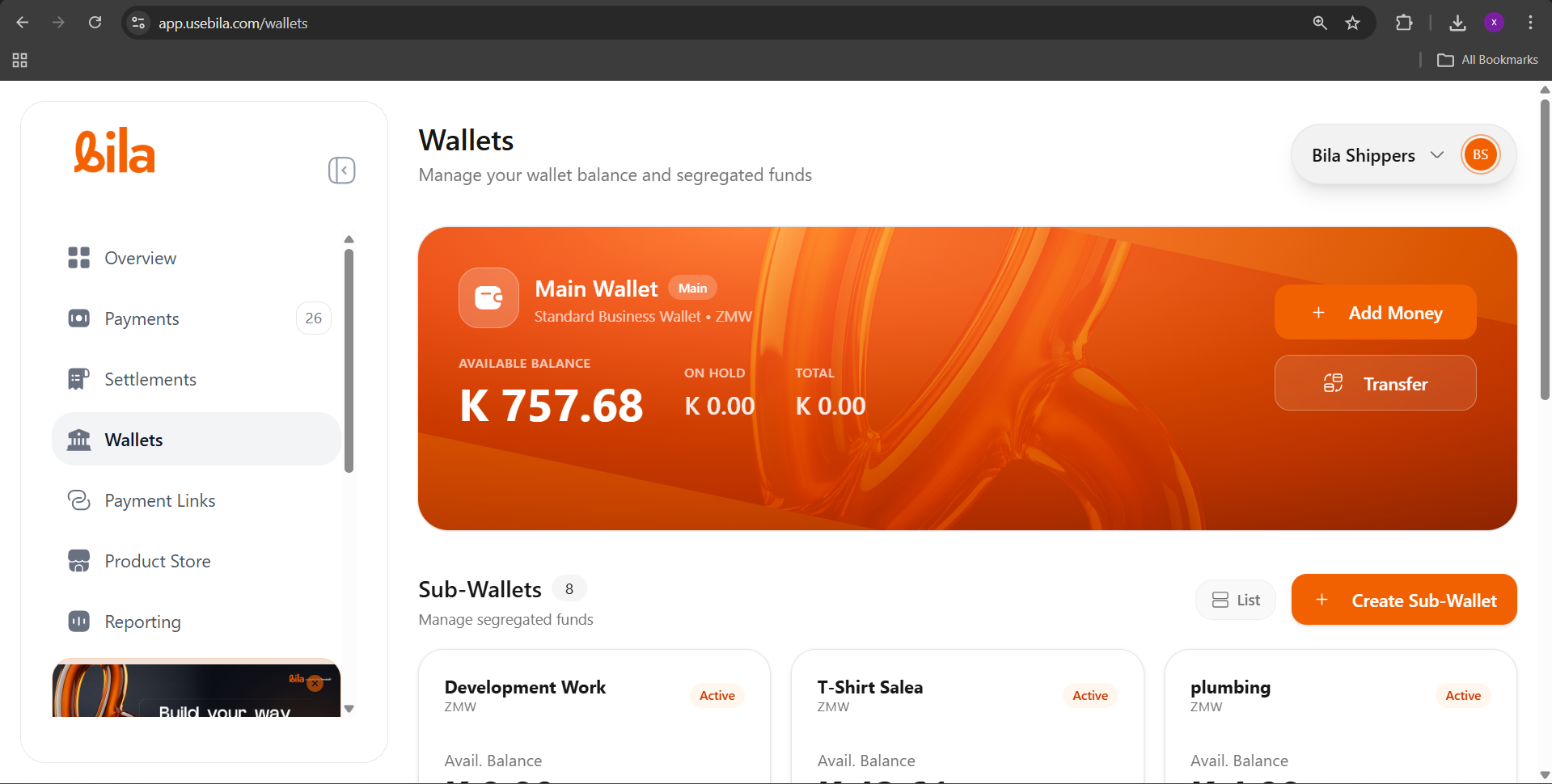
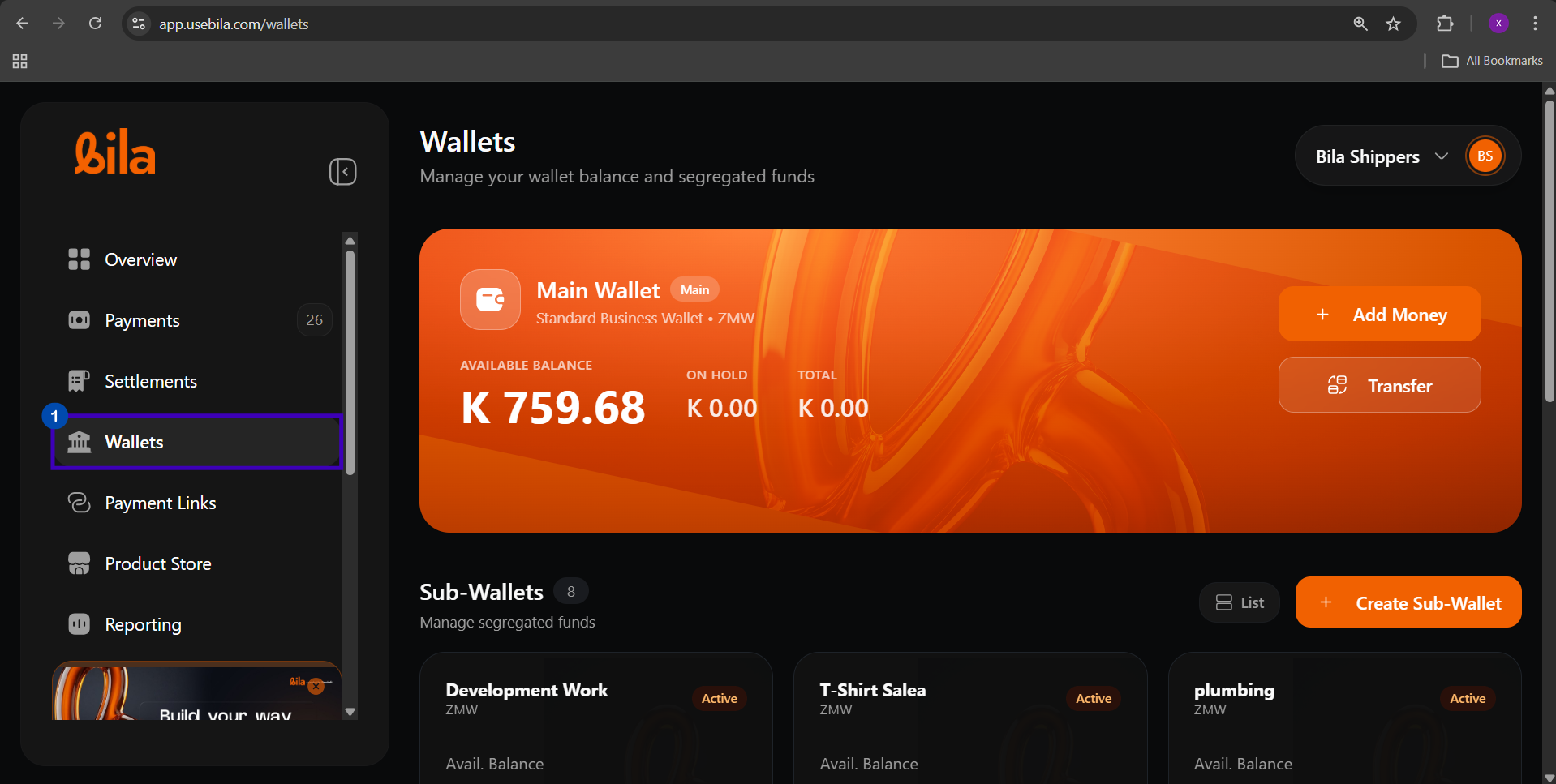
Bila gives every merchant one **Main Wallet** and the ability to create multiple **Sub-Wallets** for segregating funds.
 | Wallet Type | What It Is |
| --------------- | ----------------------------------------------------------------------------------- |
| **Main Wallet** | Your primary wallet. All incoming payments land here by default. |
| **Sub-Wallet** | A segregated fund bucket you create and name, e.g. `Development Work`, `Petty Cash` |
***
## Transfer Directions
| Direction | How to Initiate |
| ------------------------ | ------------------------------------------------------------------------ |
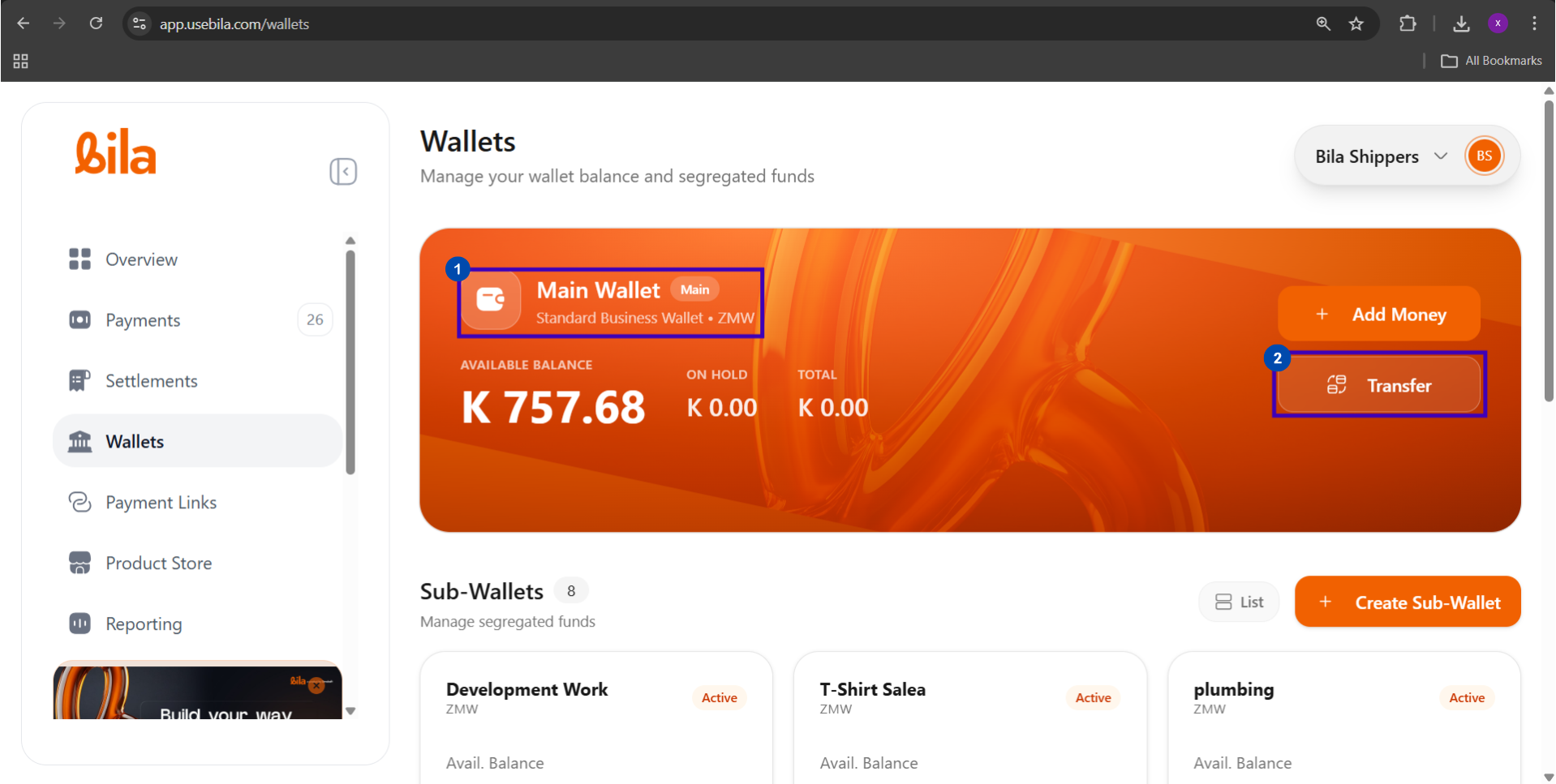
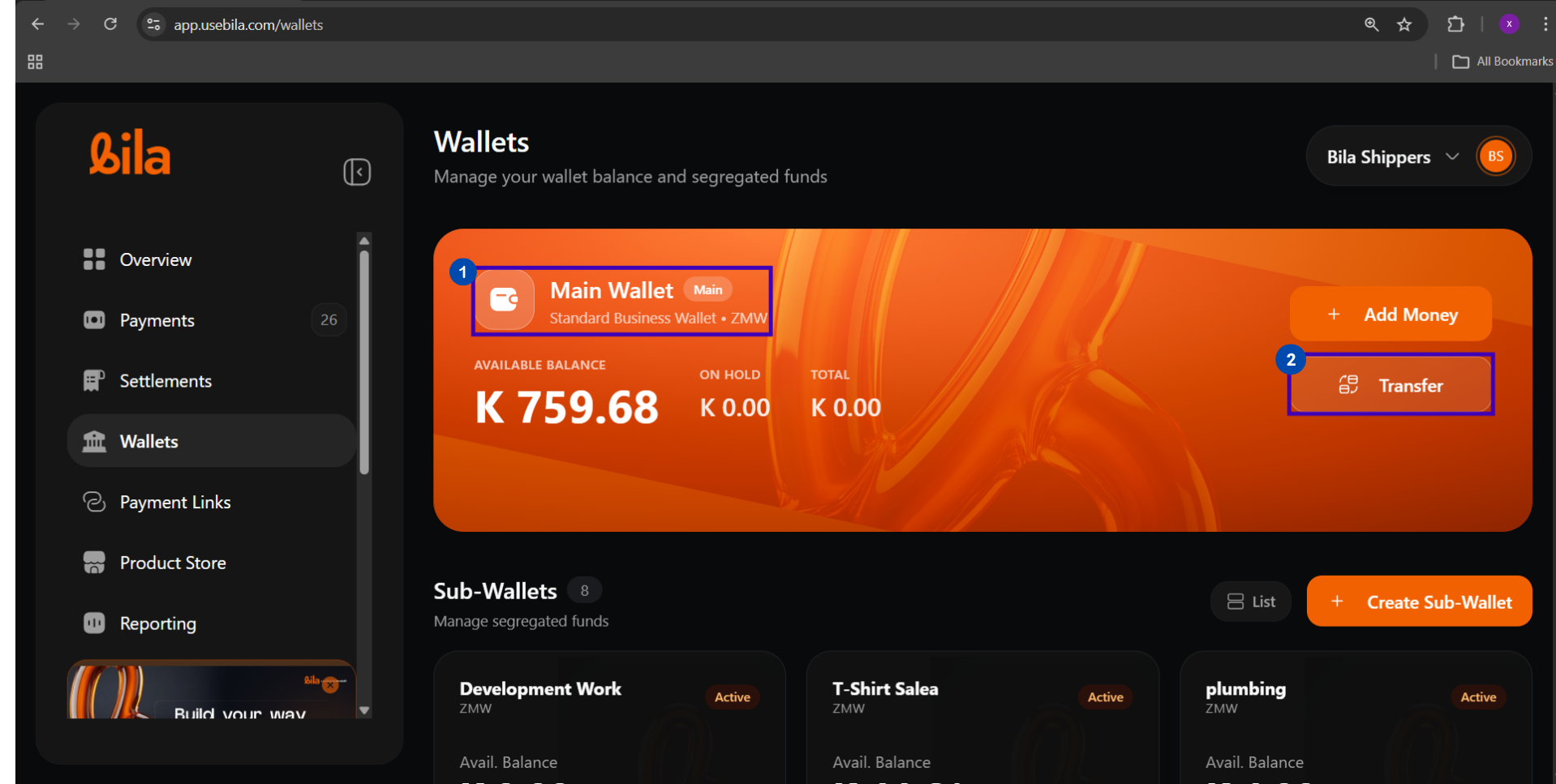
| Main Wallet → Sub-Wallet | Click **Transfer** on the Main Wallet card |
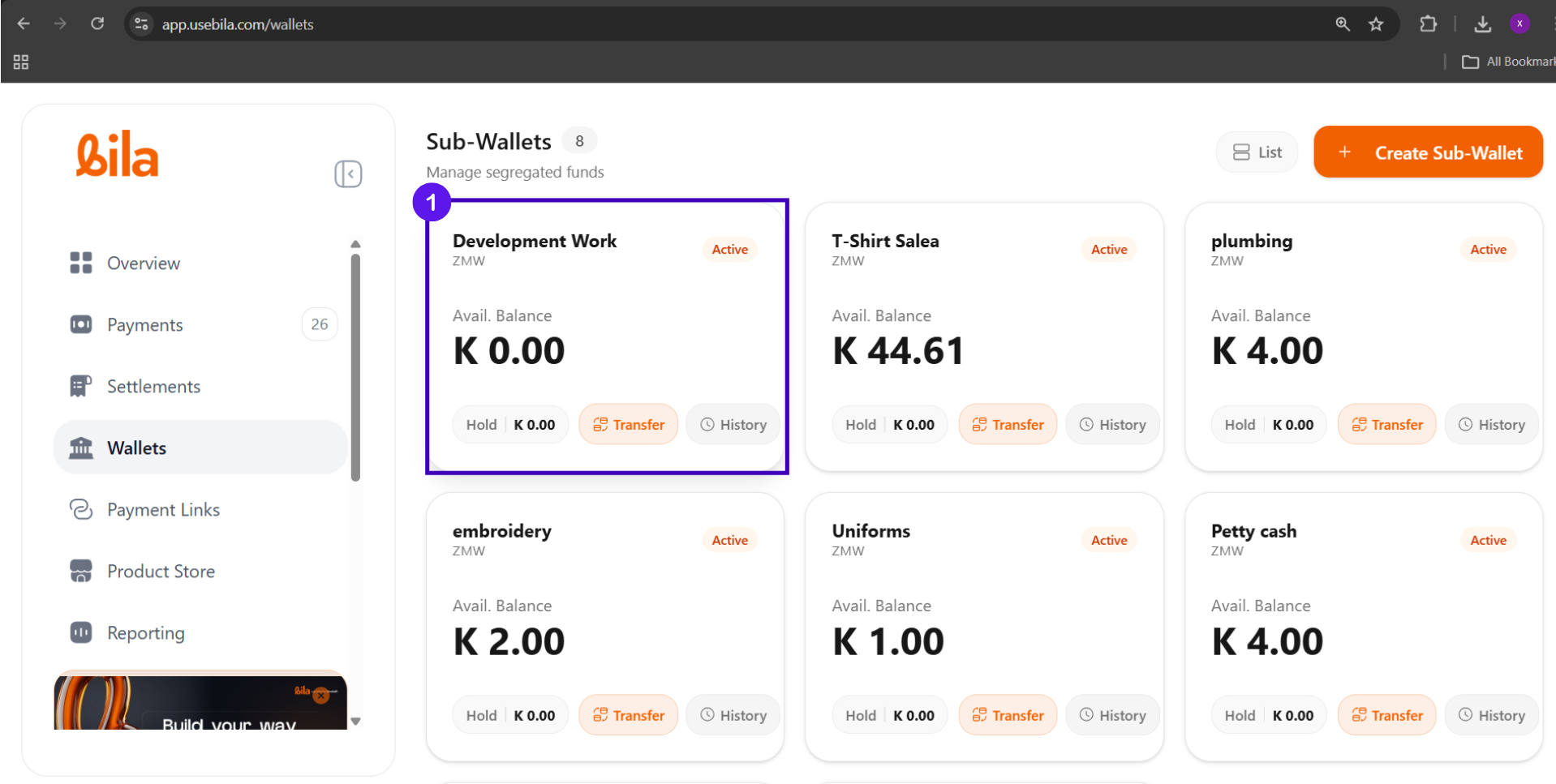
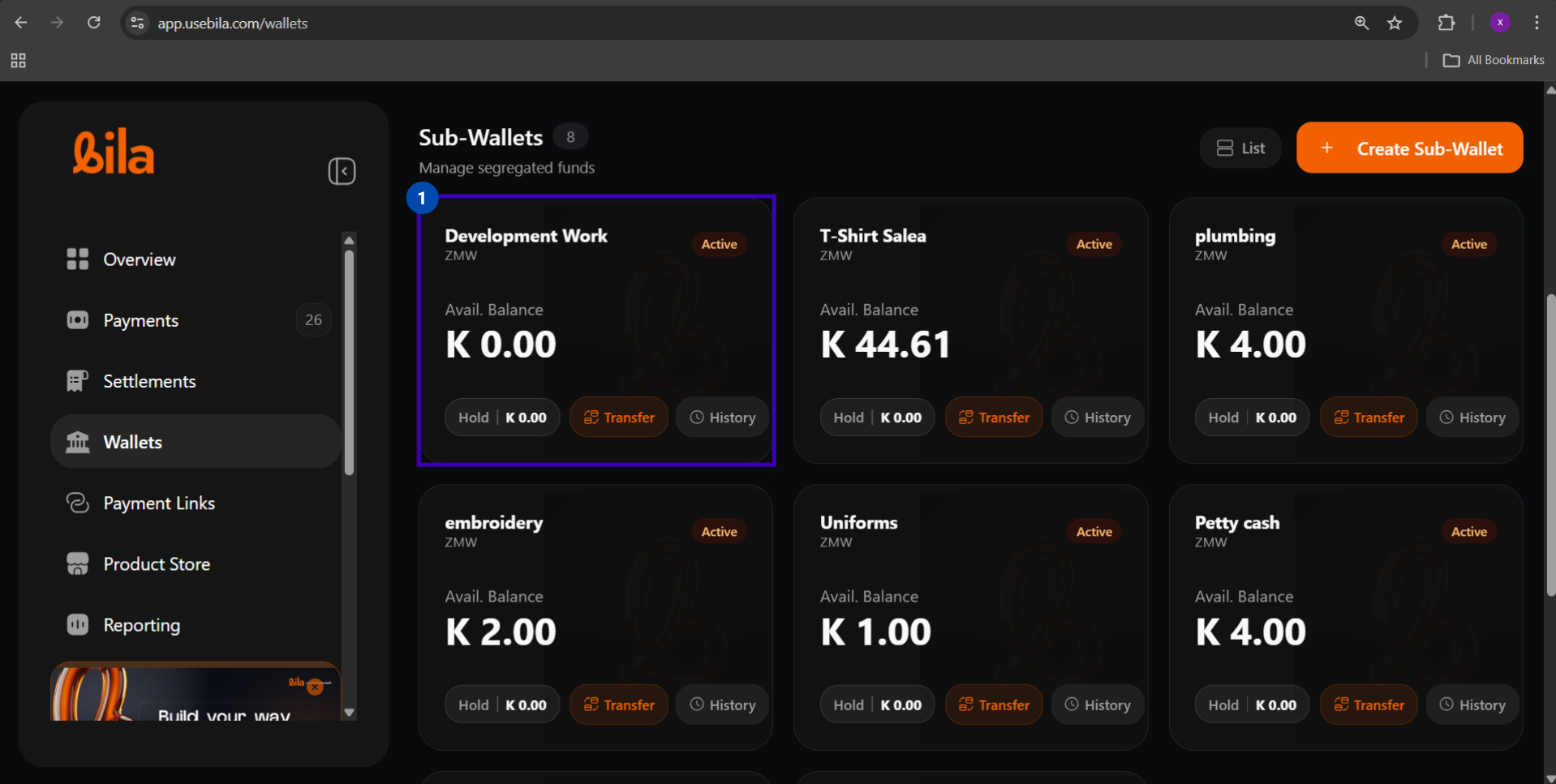
| Sub-Wallet → Main Wallet | Click **Transfer** on the Sub-Wallet card |
| Sub-Wallet → Sub-Wallet | Click **Transfer** on the source Sub-Wallet, then select the destination |
***
## Steps
Click **Wallets** in the left sidebar.
| Wallet Type | What It Is |
| --------------- | ----------------------------------------------------------------------------------- |
| **Main Wallet** | Your primary wallet. All incoming payments land here by default. |
| **Sub-Wallet** | A segregated fund bucket you create and name, e.g. `Development Work`, `Petty Cash` |
***
## Transfer Directions
| Direction | How to Initiate |
| ------------------------ | ------------------------------------------------------------------------ |
| Main Wallet → Sub-Wallet | Click **Transfer** on the Main Wallet card |
| Sub-Wallet → Main Wallet | Click **Transfer** on the Sub-Wallet card |
| Sub-Wallet → Sub-Wallet | Click **Transfer** on the source Sub-Wallet, then select the destination |
***
## Steps
Click **Wallets** in the left sidebar.
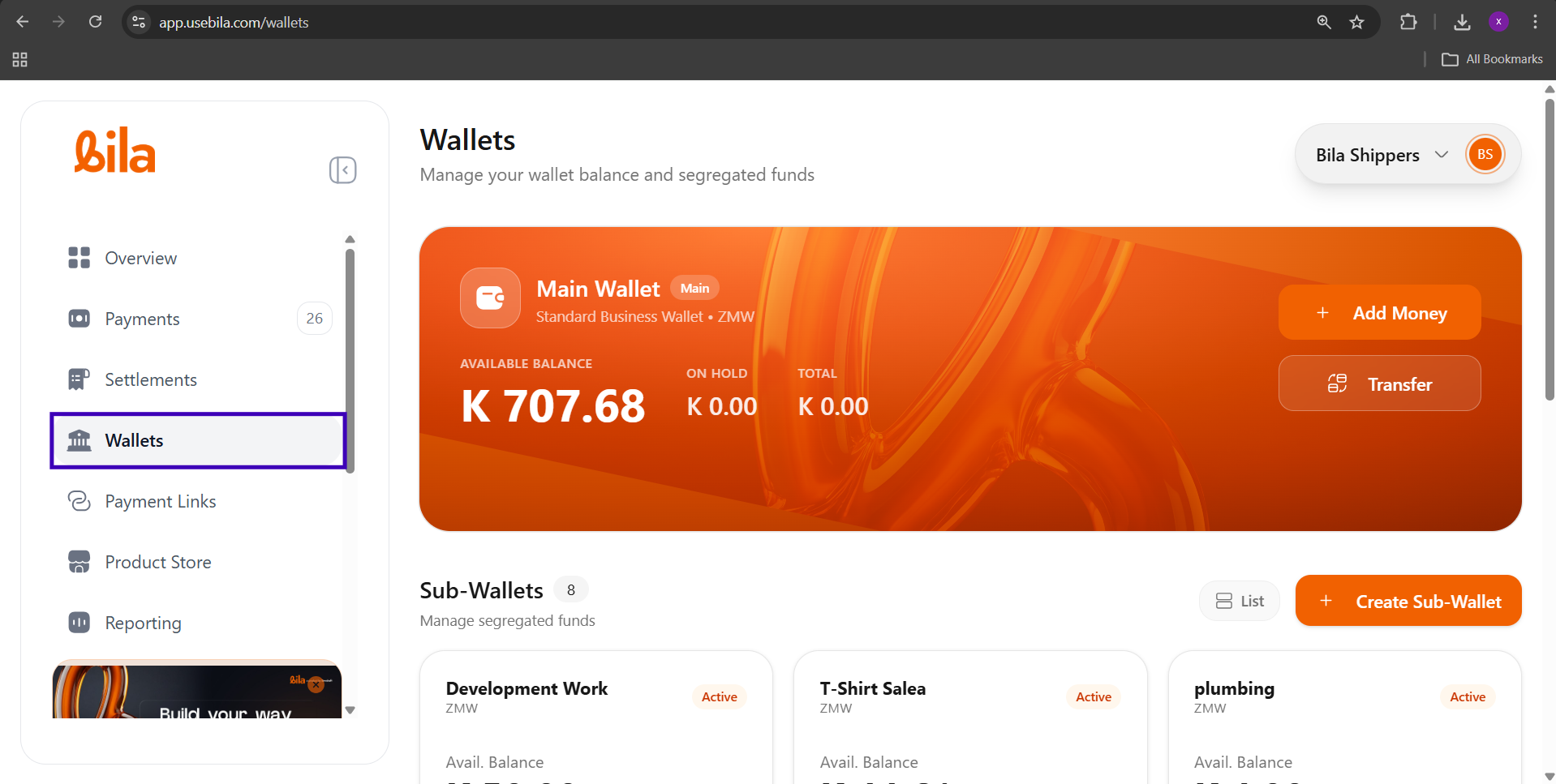
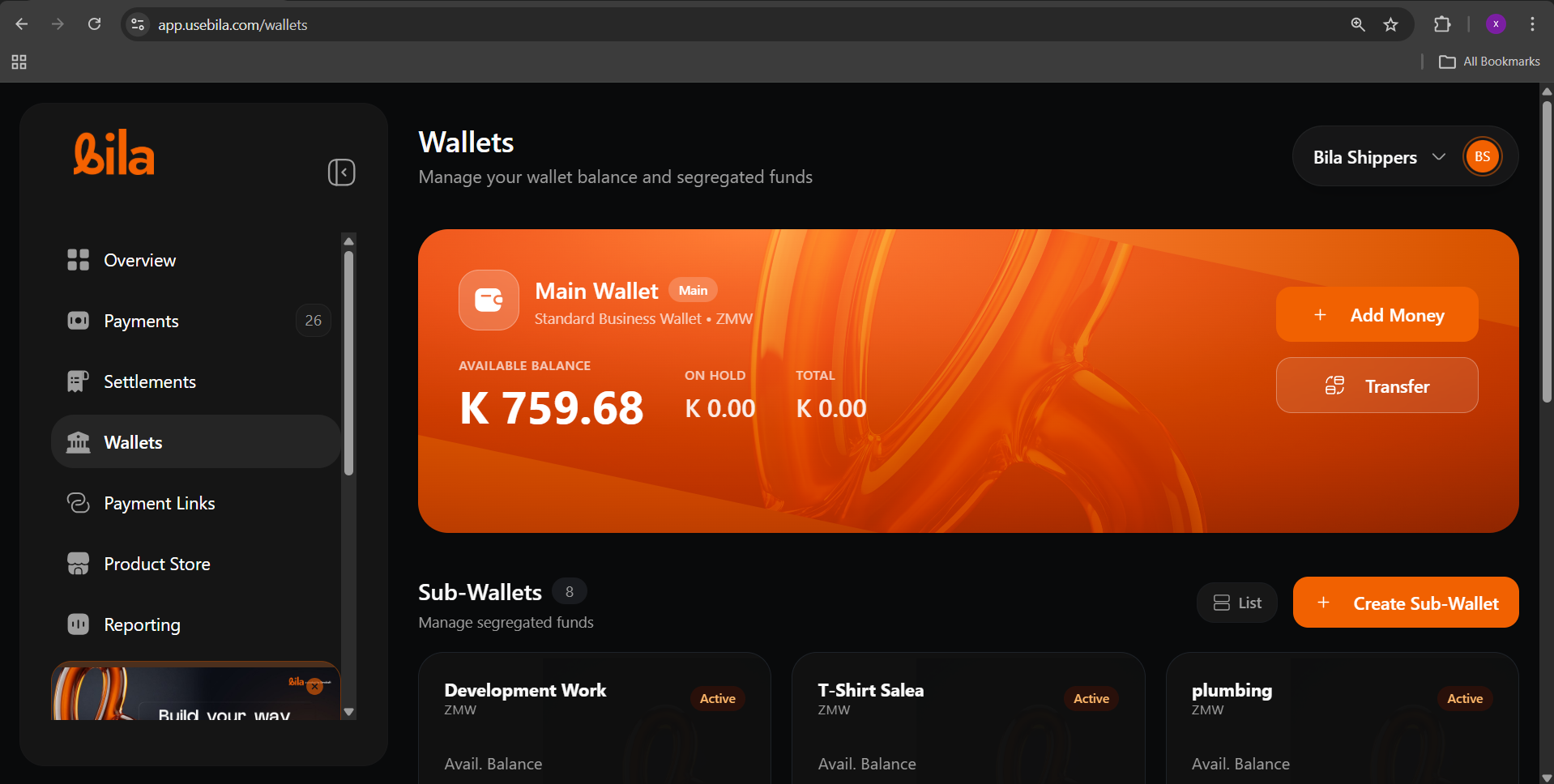 **From the Main Wallet:** Click the **Transfer** button on the Main Wallet card.
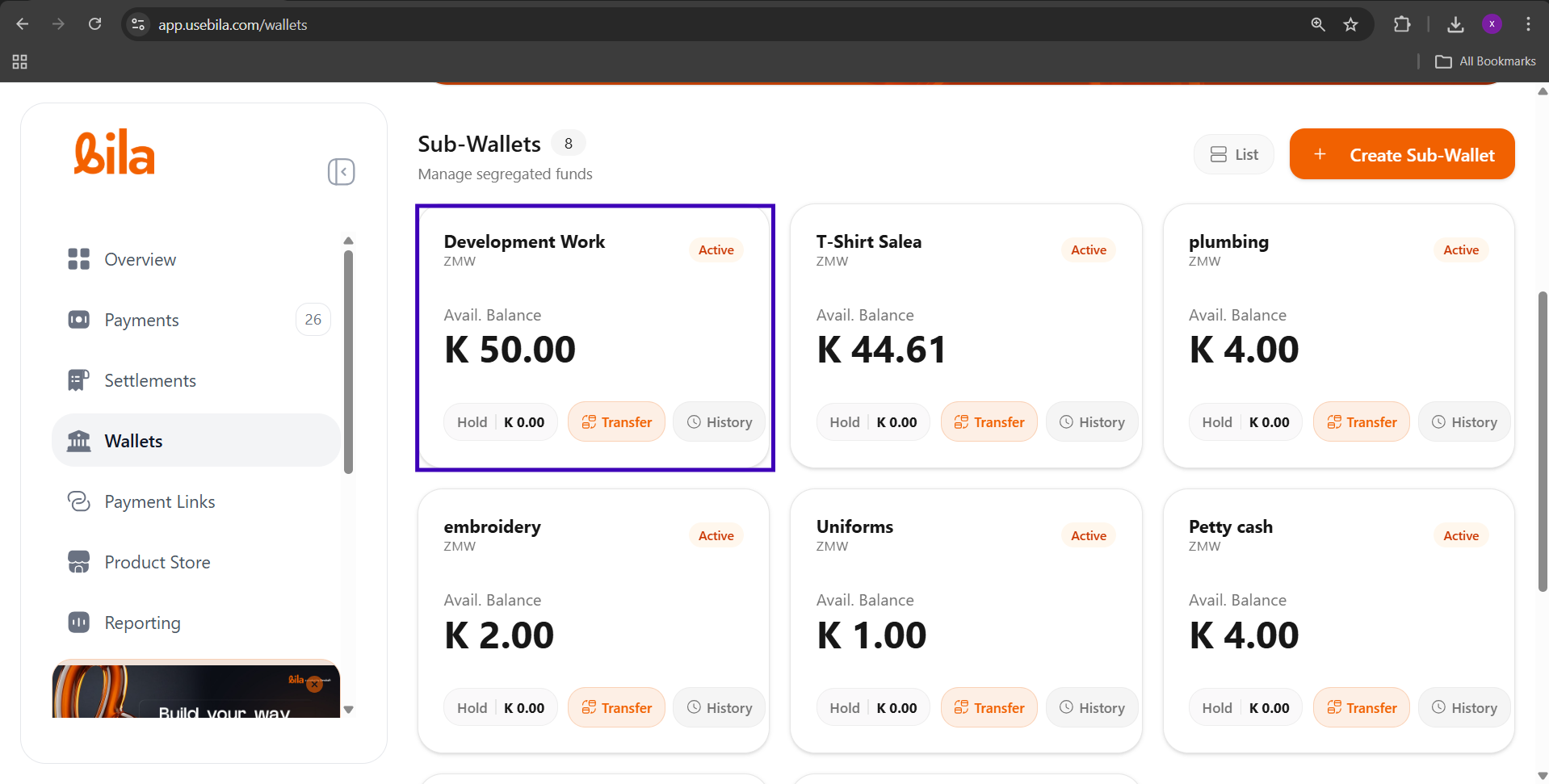
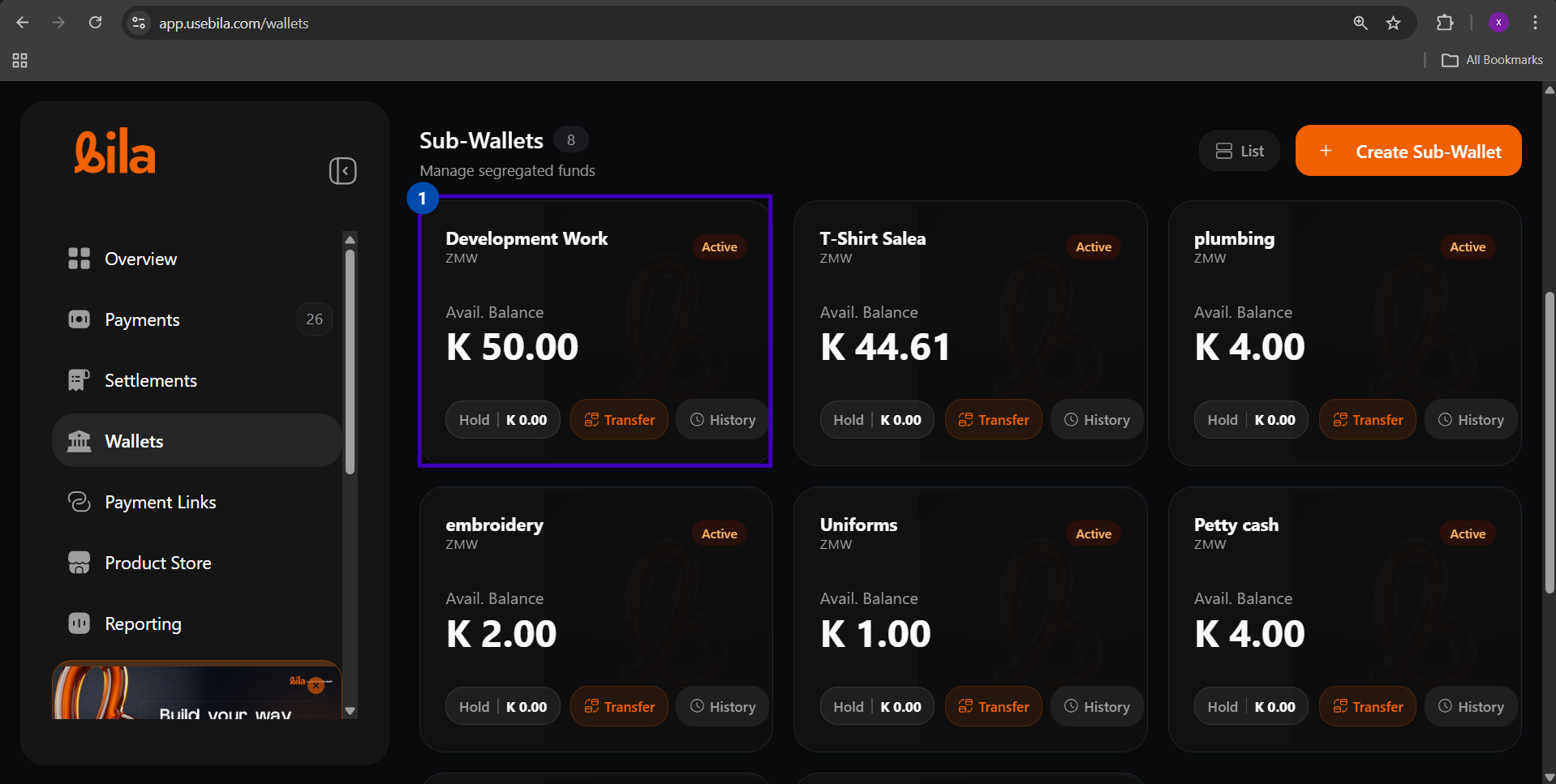
 **From a Sub-Wallet:** Scroll to the Sub-Wallets grid and click **Transfer** on the source wallet.
 The **Transfer Funds** panel opens on the right.
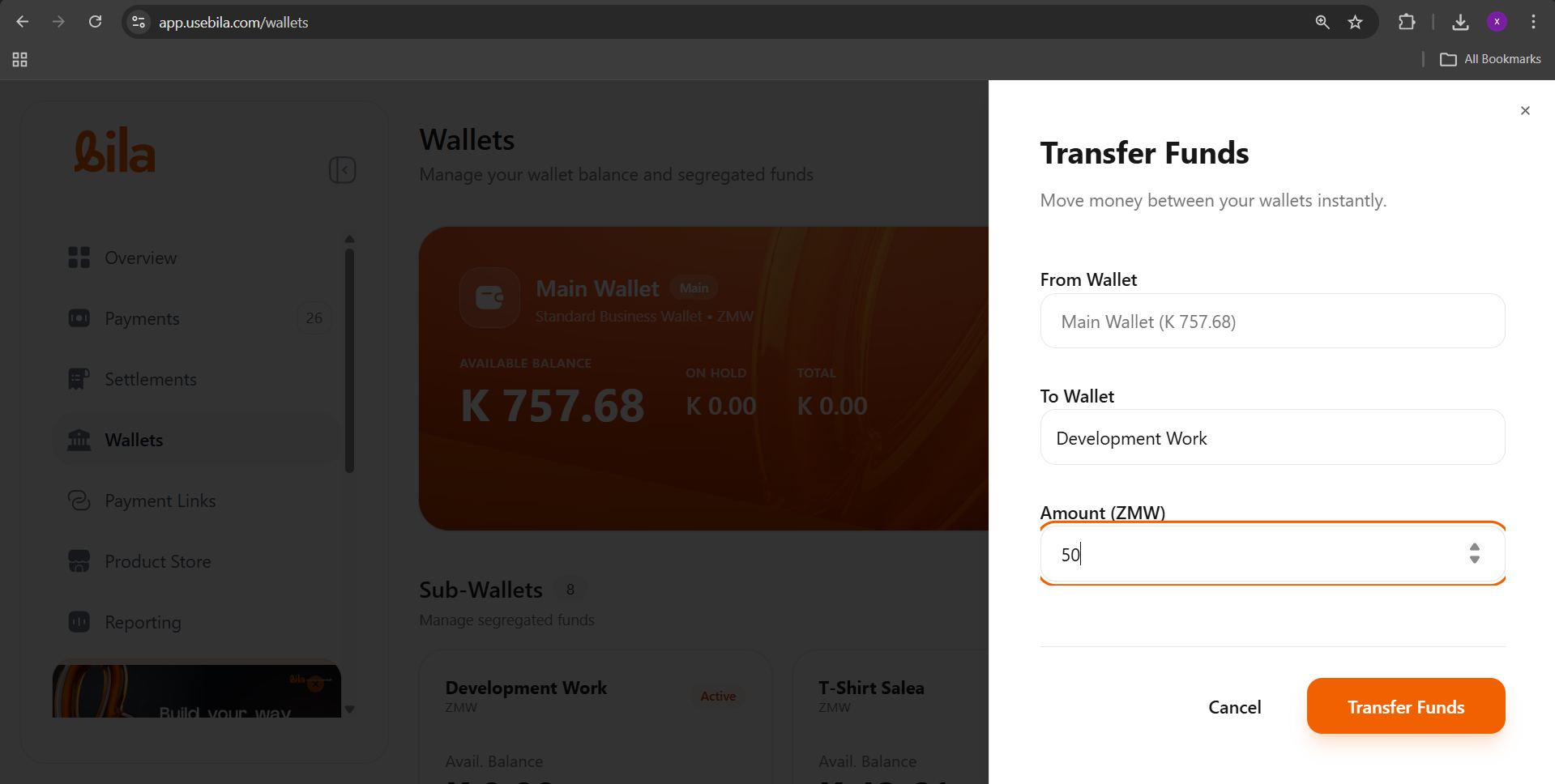
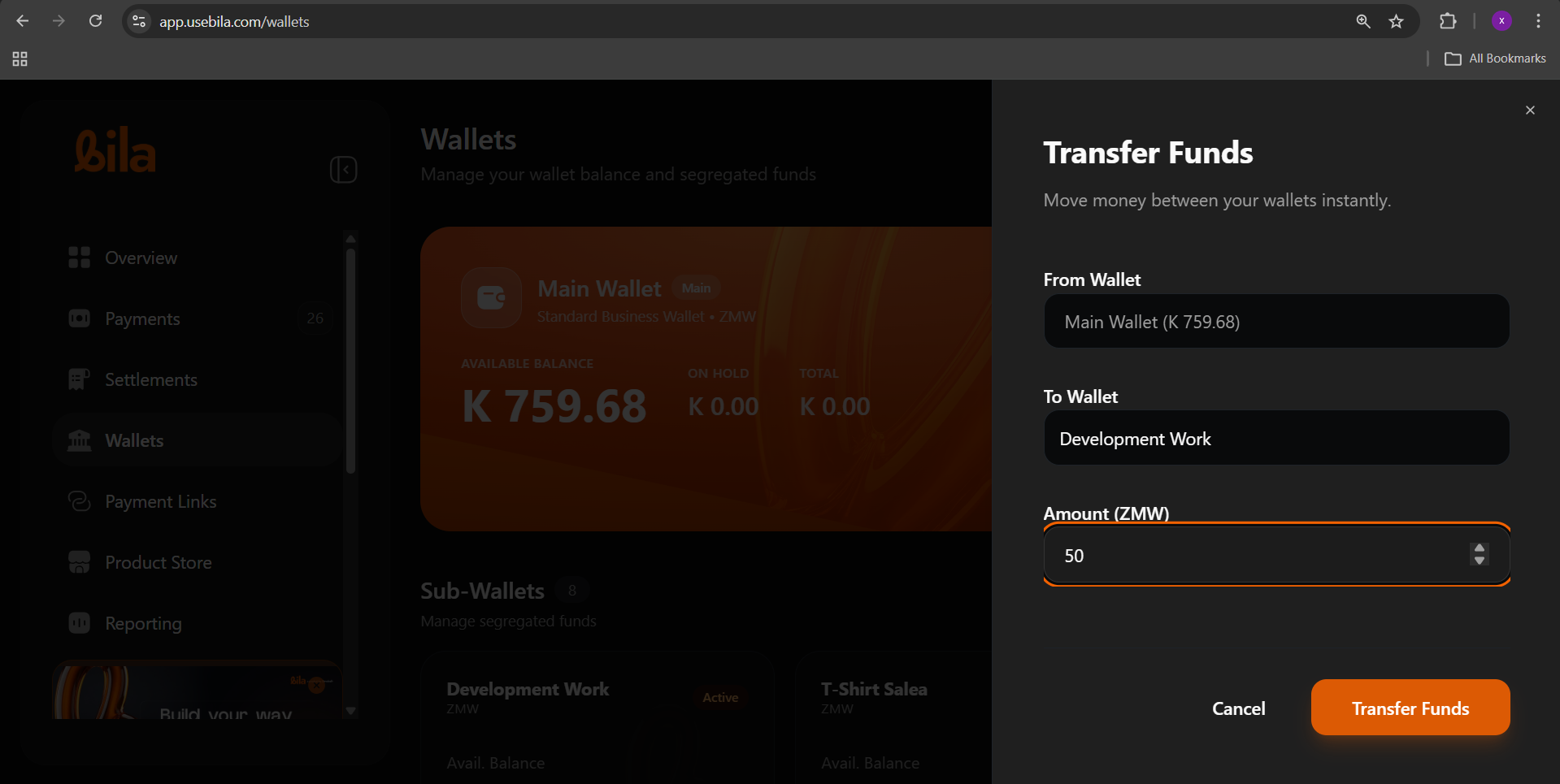 | Field | What to Enter |
| ---------------- | ----------------------------------- |
| **From Wallet** | Pre-filled - verify this is correct |
| **To Wallet** | Select the destination wallet |
| **Amount (ZMW)** | The amount to transfer |
The amount cannot exceed the source wallet's **Available Balance**. Funds on **Hold** are not transferable.
Click **Transfer Funds**.
**Confirmation:** A green toast notification confirms the transfer was successful.
| Field | What to Enter |
| ---------------- | ----------------------------------- |
| **From Wallet** | Pre-filled - verify this is correct |
| **To Wallet** | Select the destination wallet |
| **Amount (ZMW)** | The amount to transfer |
The amount cannot exceed the source wallet's **Available Balance**. Funds on **Hold** are not transferable.
Click **Transfer Funds**.
**Confirmation:** A green toast notification confirms the transfer was successful.
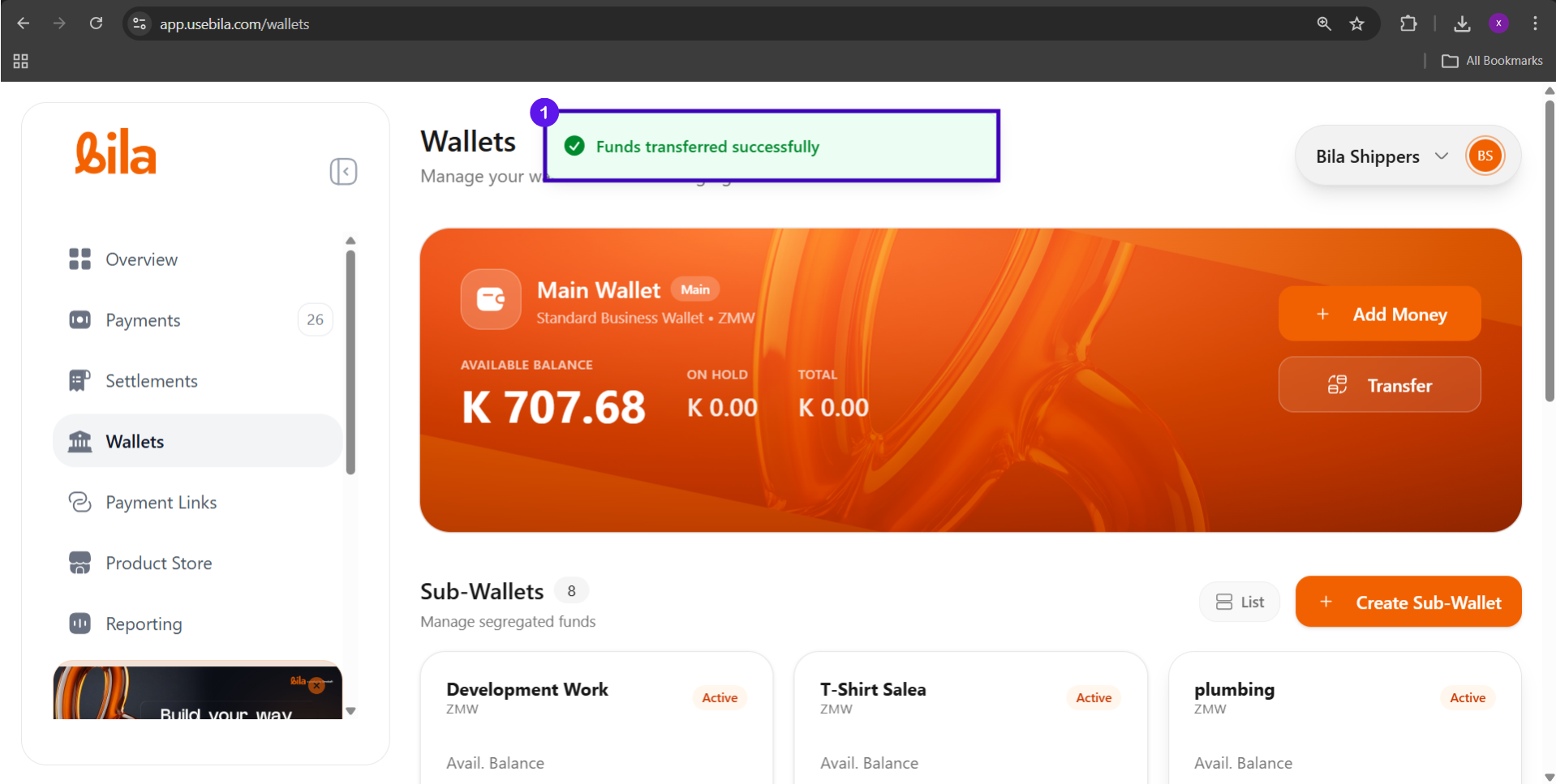
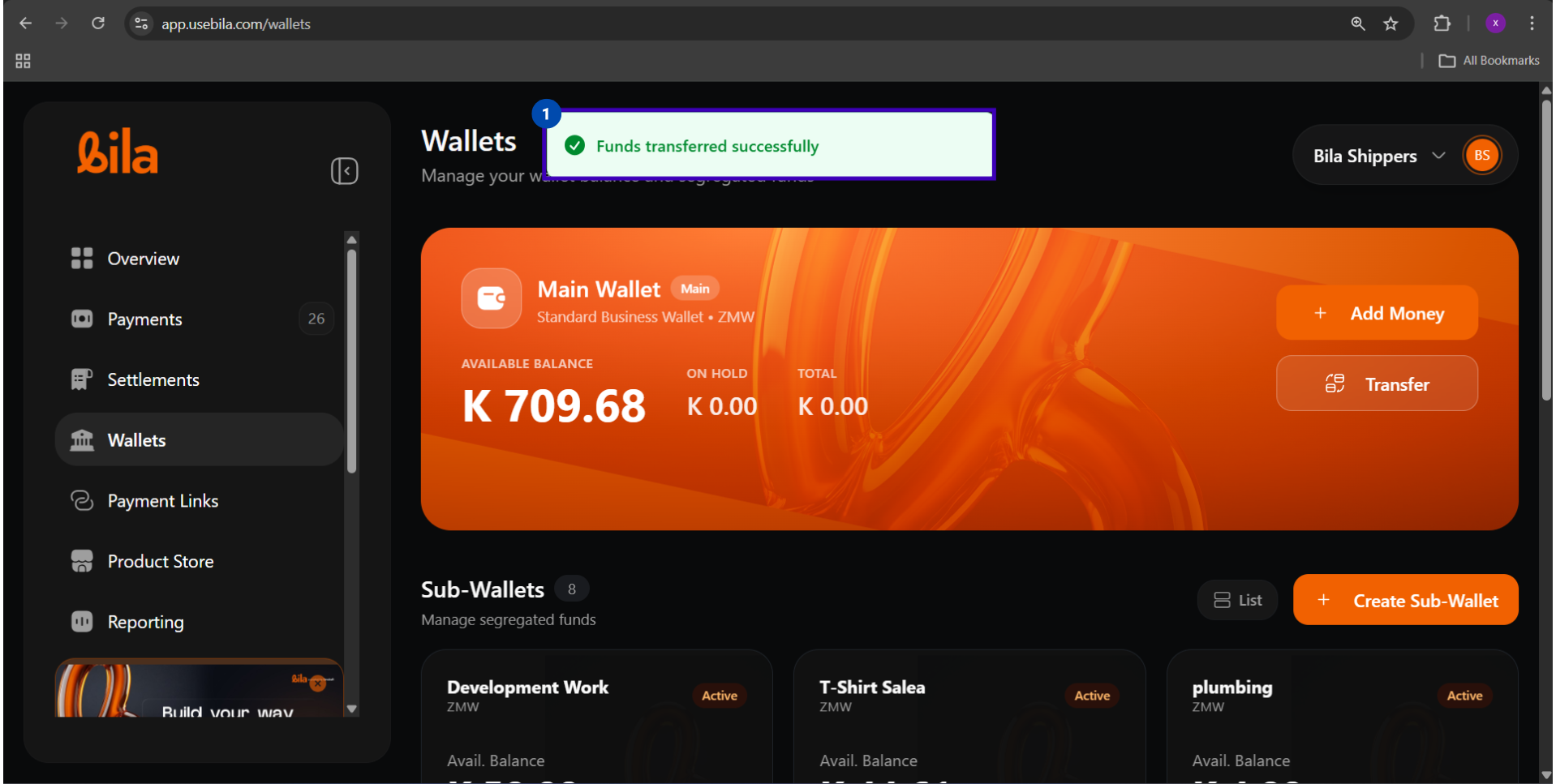 Scroll to the Sub-Wallets grid to confirm the funds arrived.
 ***
## Rules and Limits
| Rule | Detail |
| ------------------- | --------------------------------------------------------- |
| **Fees** | None - wallet-to-wallet transfers are free |
| **Processing time** | Instant |
| **Minimum amount** | ZMW 1.00 |
| **Maximum amount** | Limited to the source wallet's available balance |
| **Reversibility** | Cannot be reversed - initiate a return transfer if needed |
| **Currency** | ZMW only |
***
## Troubleshooting
| Issue | What to Do |
| ---------------------------------- | ------------------------------------------------------------- |
| Transfer button is greyed out | Confirm the source wallet has a balance greater than ZMW 0.00 |
| Amount exceeds available balance | Reduce the amount to match the available balance |
| Destination balance did not update | Refresh the Wallets page |
| Transfer made to the wrong wallet | Initiate a new transfer in the reverse direction |
***
## Next Steps
Send funds to an MTN, Airtel, or Zamtel mobile money account.
Send funds directly to any Zambian commercial bank account.
***
## Rules and Limits
| Rule | Detail |
| ------------------- | --------------------------------------------------------- |
| **Fees** | None - wallet-to-wallet transfers are free |
| **Processing time** | Instant |
| **Minimum amount** | ZMW 1.00 |
| **Maximum amount** | Limited to the source wallet's available balance |
| **Reversibility** | Cannot be reversed - initiate a return transfer if needed |
| **Currency** | ZMW only |
***
## Troubleshooting
| Issue | What to Do |
| ---------------------------------- | ------------------------------------------------------------- |
| Transfer button is greyed out | Confirm the source wallet has a balance greater than ZMW 0.00 |
| Amount exceeds available balance | Reduce the amount to match the available balance |
| Destination balance did not update | Refresh the Wallets page |
| Transfer made to the wrong wallet | Initiate a new transfer in the reverse direction |
***
## Next Steps
Send funds to an MTN, Airtel, or Zamtel mobile money account.
Send funds directly to any Zambian commercial bank account.