> ## Documentation Index
> Fetch the complete documentation index at: https://docs.usebila.com/docs/llms.txt
> Use this file to discover all available pages before exploring further.
# Mobile Money Payouts
> Send funds from your Bila wallet to an MTN, Airtel, or Zamtel mobile money account.
Send funds from any of your Bila wallets to a registered **MTN Mobile Money**, **Airtel Money**, or **Zamtel Kwacha** account.
Only users with **Merchant Admin** or **Initiator & Approver** roles can initiate payouts.
***
## Prerequisites
Before you begin, make sure you have:
* Sufficient available balance in the wallet you intend to debit
* The recipient saved under **Payments → Recipients** with their correct mobile number and provider
* Approver availability if your account requires dual authorisation
***
## Steps
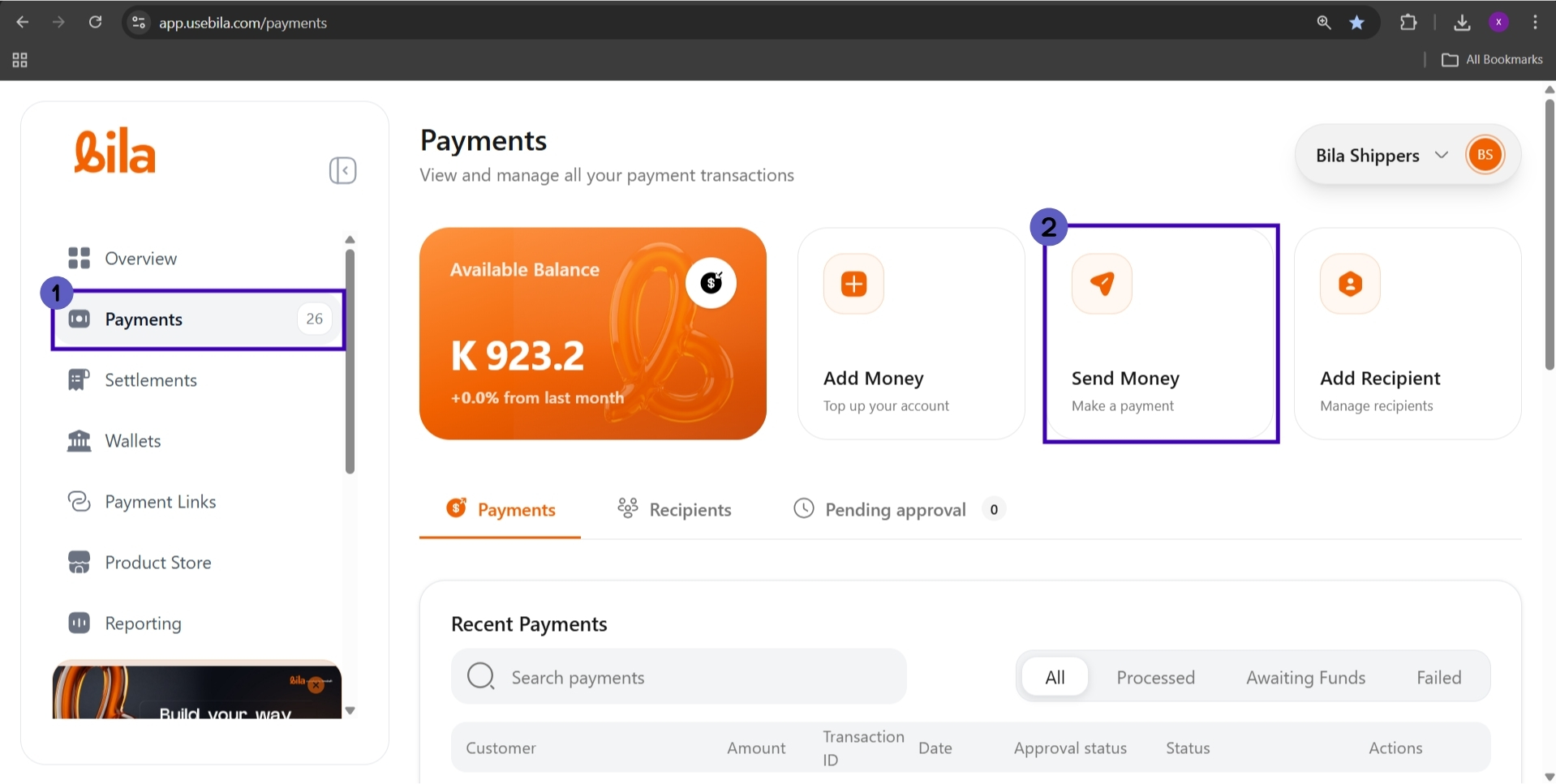
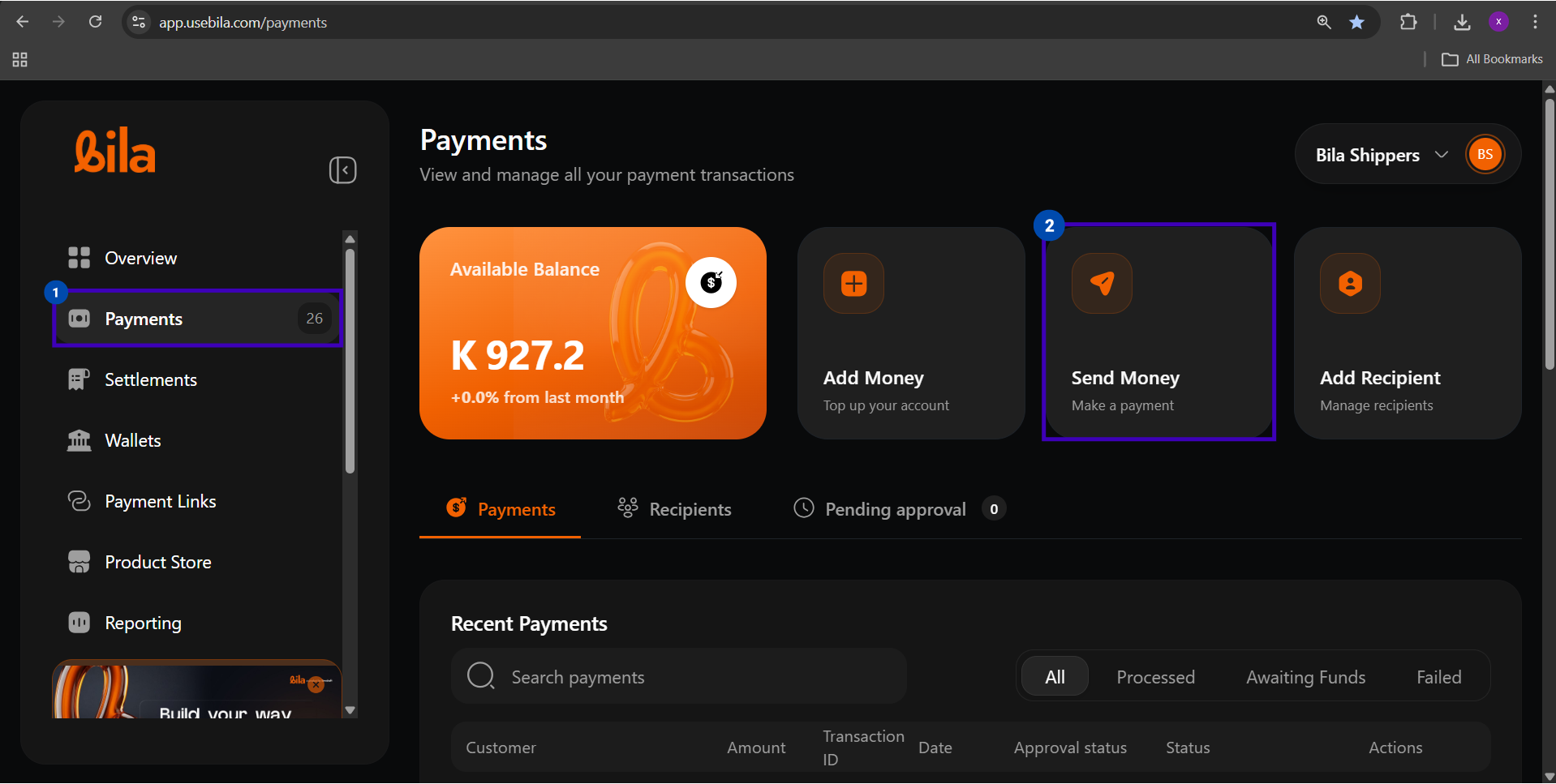
Click **Payments** in the left sidebar, then click the **Send Money** card.
 In the **Source Account** section, click the wallet you want to debit. The selected wallet is highlighted with a checkmark.
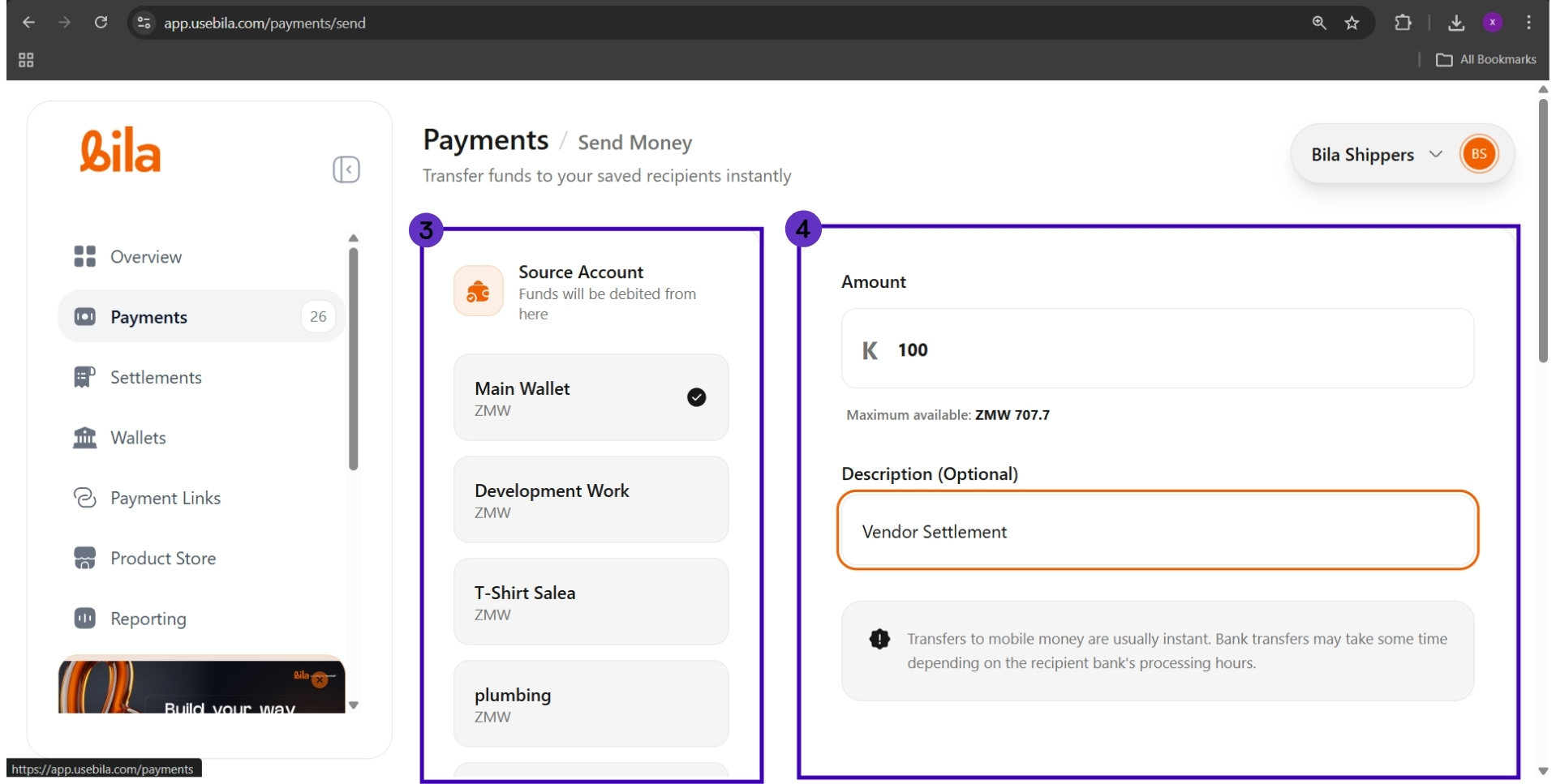
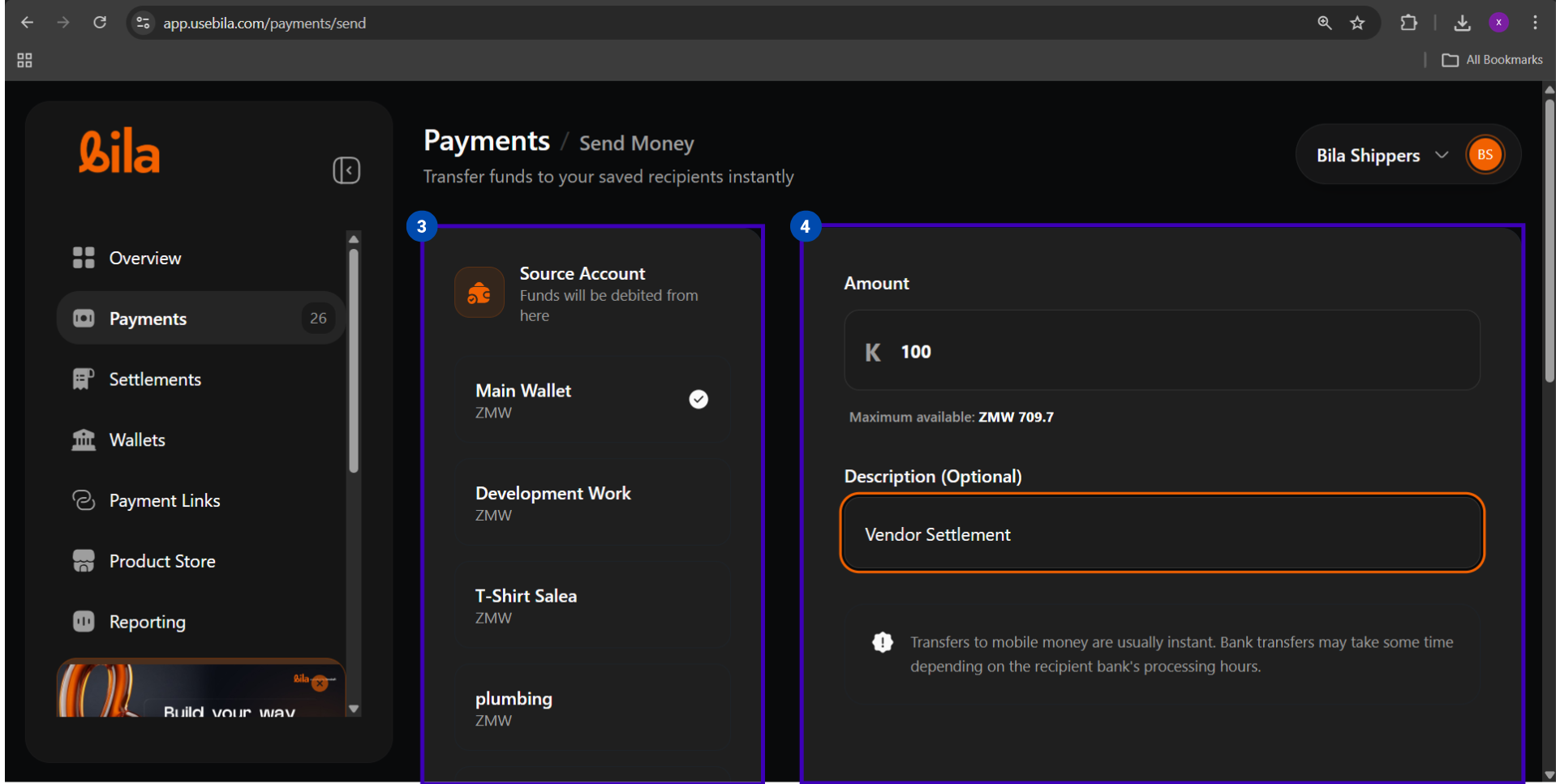 Select **Main Wallet** for general-purpose payouts. Sub-wallets can also be used if funds are allocated there.
| Field | What to Enter |
| ---------------------------- | --------------------------------------------------------------- |
| **Amount** | The amount to send in ZMW (cannot exceed the maximum available) |
| **Description** *(optional)* | A reference note, e.g. `Vendor Settlement` |
Scroll to the **Recipient** section and click **Choose recipient**.
Select **Main Wallet** for general-purpose payouts. Sub-wallets can also be used if funds are allocated there.
| Field | What to Enter |
| ---------------------------- | --------------------------------------------------------------- |
| **Amount** | The amount to send in ZMW (cannot exceed the maximum available) |
| **Description** *(optional)* | A reference note, e.g. `Vendor Settlement` |
Scroll to the **Recipient** section and click **Choose recipient**.
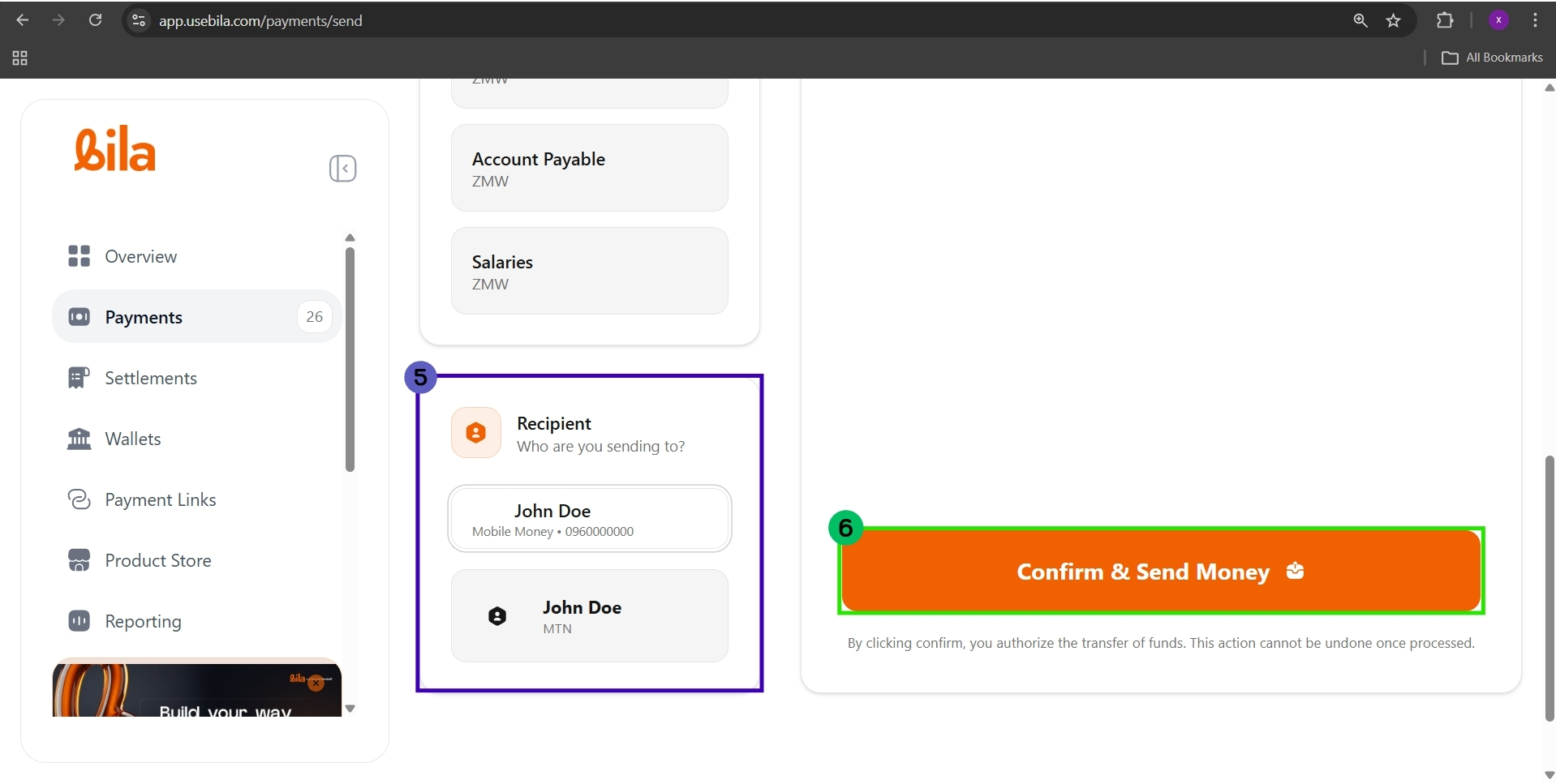
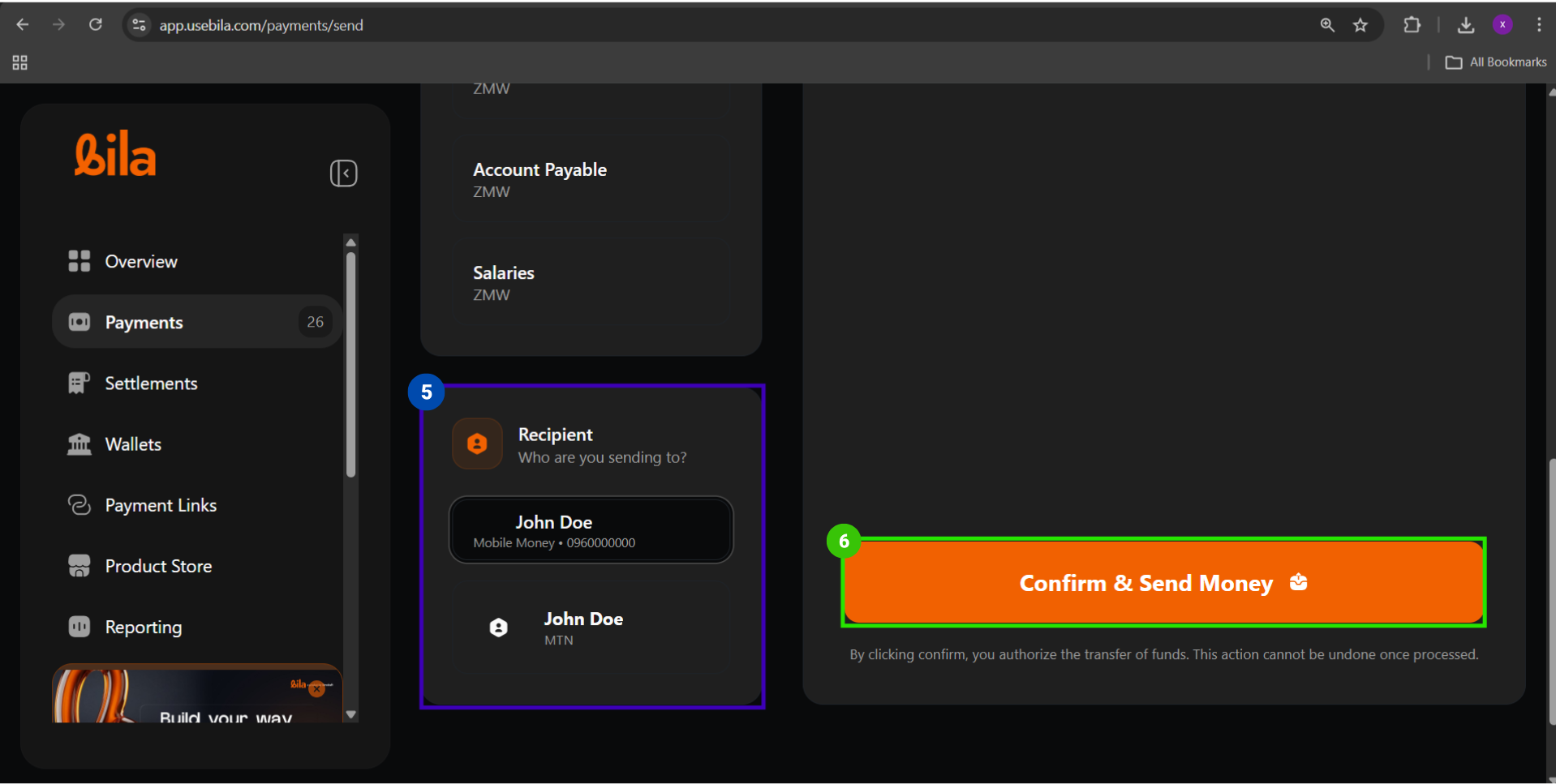 Select the correct mobile money entry - recipients show as **Name** - `Mobile Money • 09XXXXXXXX`.
If the recipient is saved under both mobile money and bank, make sure you select the **mobile money** entry.
Verify the source wallet, amount, and recipient, then click **Confirm & Send Money**.
This action cannot be undone once processed. Sending to a wrong number requires a separate recovery process with the mobile network operator.
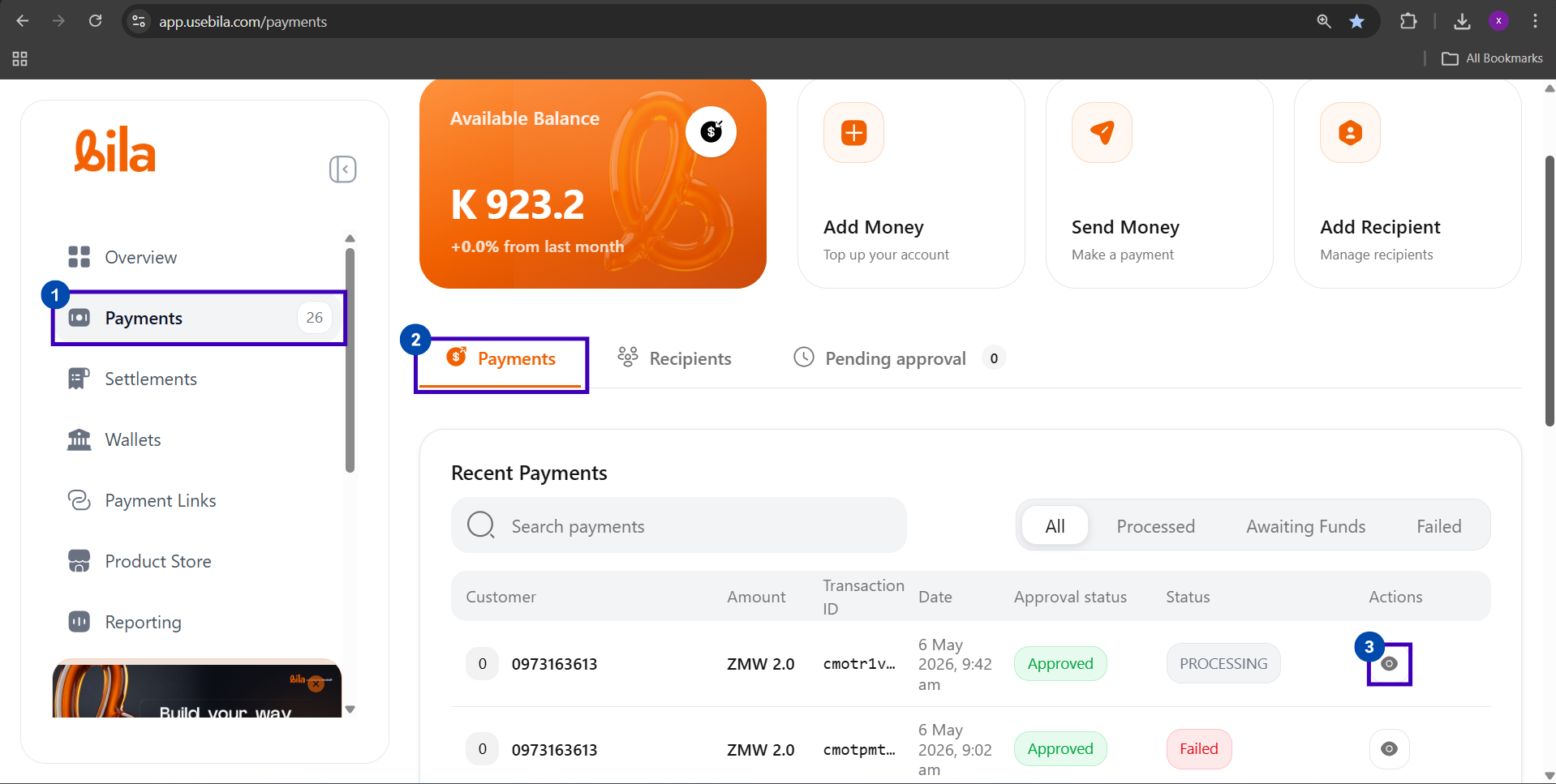
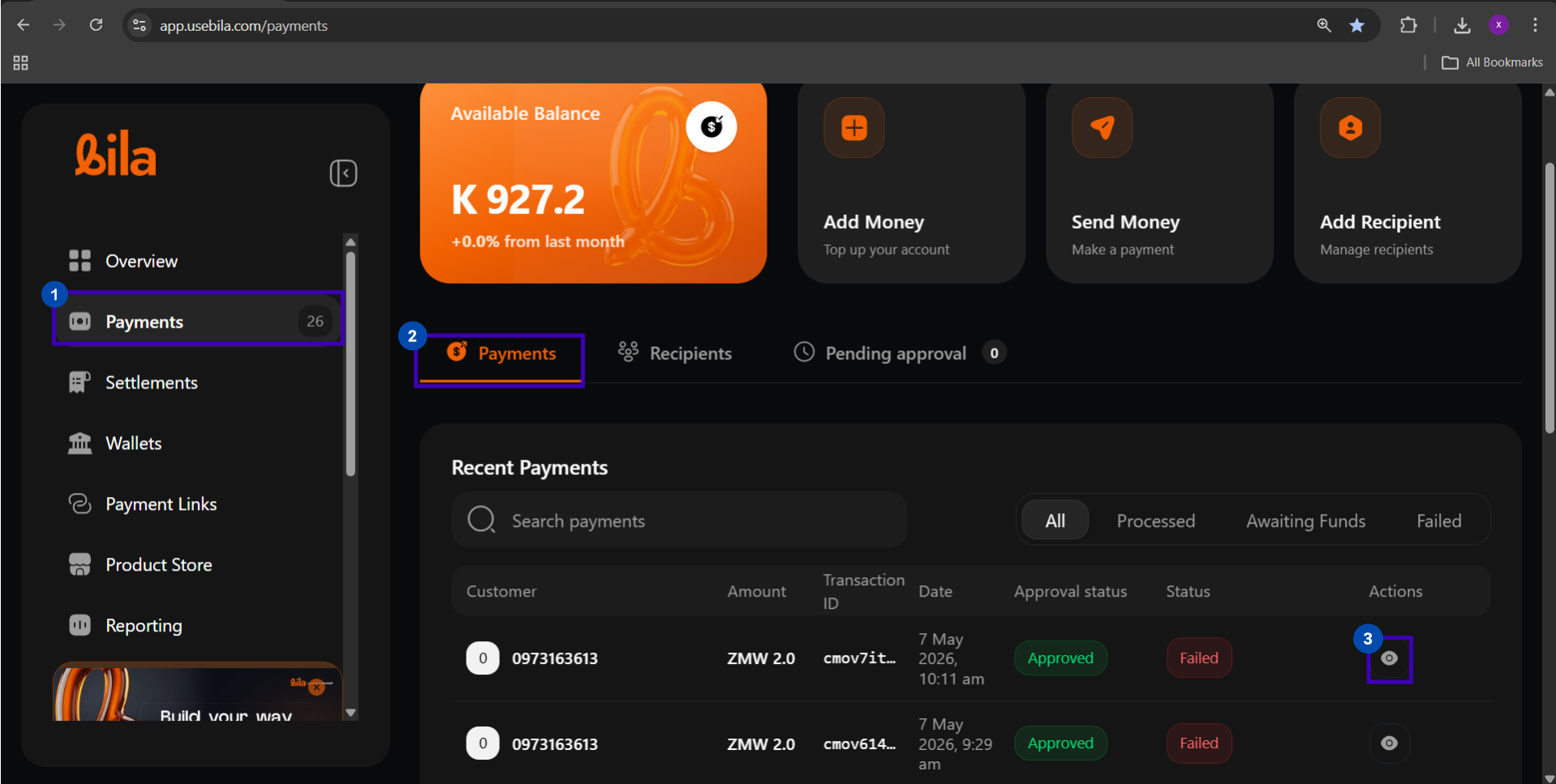
Go to **Payments → Recent Payments** and click the **eye icon** to view full transaction details.
Select the correct mobile money entry - recipients show as **Name** - `Mobile Money • 09XXXXXXXX`.
If the recipient is saved under both mobile money and bank, make sure you select the **mobile money** entry.
Verify the source wallet, amount, and recipient, then click **Confirm & Send Money**.
This action cannot be undone once processed. Sending to a wrong number requires a separate recovery process with the mobile network operator.
Go to **Payments → Recent Payments** and click the **eye icon** to view full transaction details.
 ***
## Supported Providers
| Provider | Requirement |
| -------------------- | --------------------------- |
| **MTN Mobile Money** | Active MTN MoMo wallet |
| **Airtel Money** | Active Airtel Money account |
| **Zamtel Kwacha** | Active Zamtel Kwacha wallet |
***
## Fees, Limits, and Processing
| Detail | Value |
| ------------------- | ------------------------------------------------------------ |
| **Fee** | Varies by provider - check your merchant fee schedule |
| **Fee bearer** | Configured in **Settings → General → Collection fee bearer** |
| **Minimum amount** | ZMW 1.00 |
| **Maximum amount** | Limited to the source wallet's available balance |
| **Processing time** | Near-instant, typically within 60 seconds |
***
## Payment Status Reference
| Status | What It Means |
| ---------------- | ------------------------------------------------------- |
| `Processed` | Funds delivered to recipient |
| `Awaiting Funds` | Approved but source wallet has insufficient balance |
| `Failed` | Rejected by the network - funds returned to your wallet |
| `Pending` | Awaiting authorisation from an approver |
***
## Troubleshooting
| Issue | What to Do |
| ------------------------------- | ---------------------------------------------------------- |
| Recipient not listed | Add them via **Payments → Add Recipient** |
| Recipient did not receive funds | Allow up to 60 seconds, then check Recent Payments |
| Status shows `Failed` | Verify the number and provider, then retry |
| Status shows `Awaiting Funds` | Top up the source wallet |
| Payout stuck in `Pending` | An approver must authorise in the **Pending approval** tab |
***
## Next Steps
Send funds directly to any Zambian commercial bank account.
Move funds between your wallets instantly and for free.
***
## Supported Providers
| Provider | Requirement |
| -------------------- | --------------------------- |
| **MTN Mobile Money** | Active MTN MoMo wallet |
| **Airtel Money** | Active Airtel Money account |
| **Zamtel Kwacha** | Active Zamtel Kwacha wallet |
***
## Fees, Limits, and Processing
| Detail | Value |
| ------------------- | ------------------------------------------------------------ |
| **Fee** | Varies by provider - check your merchant fee schedule |
| **Fee bearer** | Configured in **Settings → General → Collection fee bearer** |
| **Minimum amount** | ZMW 1.00 |
| **Maximum amount** | Limited to the source wallet's available balance |
| **Processing time** | Near-instant, typically within 60 seconds |
***
## Payment Status Reference
| Status | What It Means |
| ---------------- | ------------------------------------------------------- |
| `Processed` | Funds delivered to recipient |
| `Awaiting Funds` | Approved but source wallet has insufficient balance |
| `Failed` | Rejected by the network - funds returned to your wallet |
| `Pending` | Awaiting authorisation from an approver |
***
## Troubleshooting
| Issue | What to Do |
| ------------------------------- | ---------------------------------------------------------- |
| Recipient not listed | Add them via **Payments → Add Recipient** |
| Recipient did not receive funds | Allow up to 60 seconds, then check Recent Payments |
| Status shows `Failed` | Verify the number and provider, then retry |
| Status shows `Awaiting Funds` | Top up the source wallet |
| Payout stuck in `Pending` | An approver must authorise in the **Pending approval** tab |
***
## Next Steps
Send funds directly to any Zambian commercial bank account.
Move funds between your wallets instantly and for free.