> ## Documentation Index
> Fetch the complete documentation index at: https://docs.usebila.com/docs/llms.txt
> Use this file to discover all available pages before exploring further.
# Configure Collection and Payout Fees
The **Collection Fee Bearer** setting controls who pays the transaction fee on each payment - you, your customer, or decided per transaction via the API.
Only a **Merchant Admin** can configure fee settings.
***
## Prerequisites
Before you begin, make sure you have:
* Merchant Admin access to your Bila dashboard
* A clear understanding of your pricing strategy - whether your listed prices are inclusive or exclusive of transaction fees
***
## Step 1: Open General Settings
1. Click **Settings** at the bottom of the left sidebar.
2. Confirm you are on the **General** tab - this is the default view.
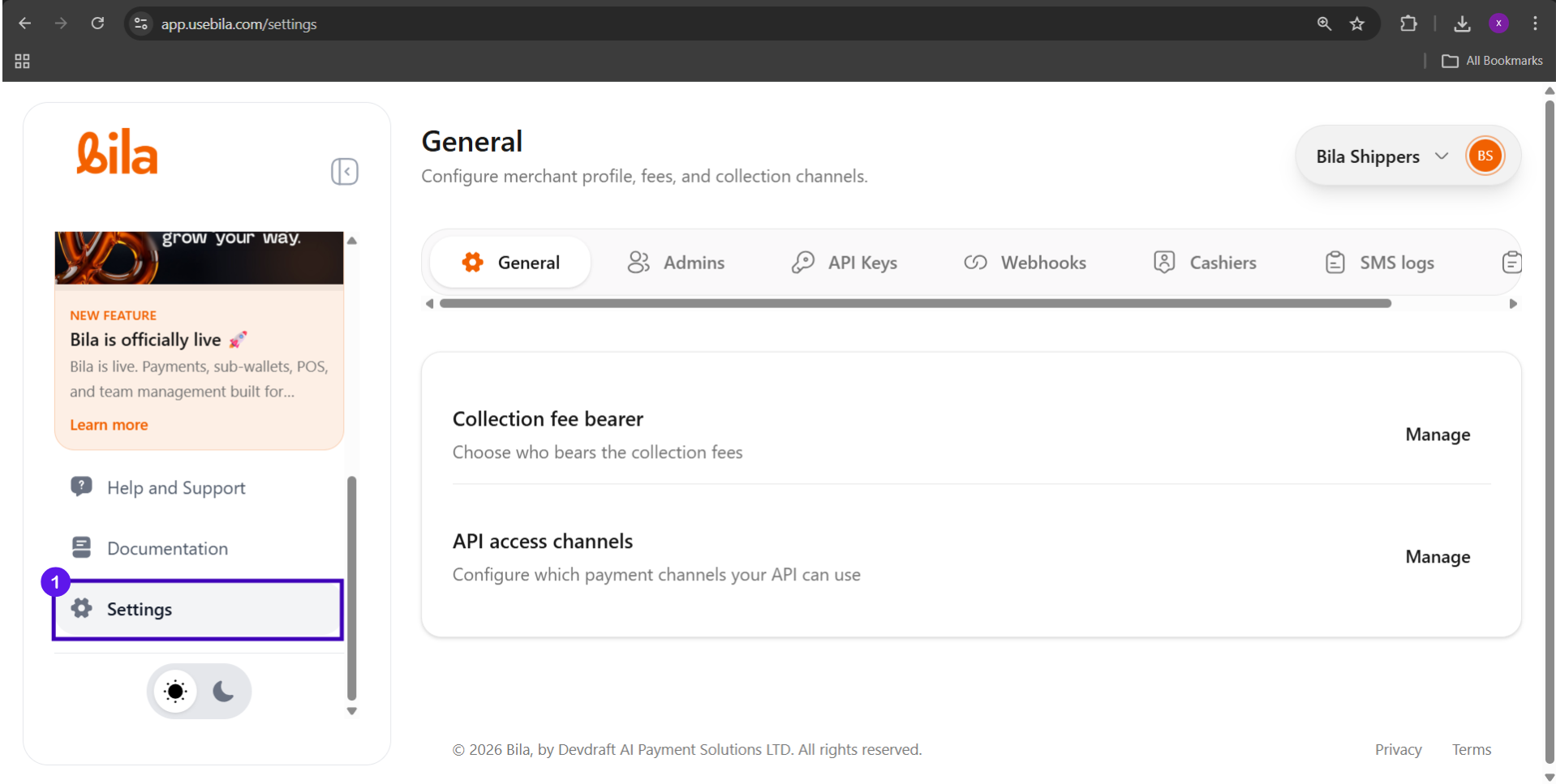
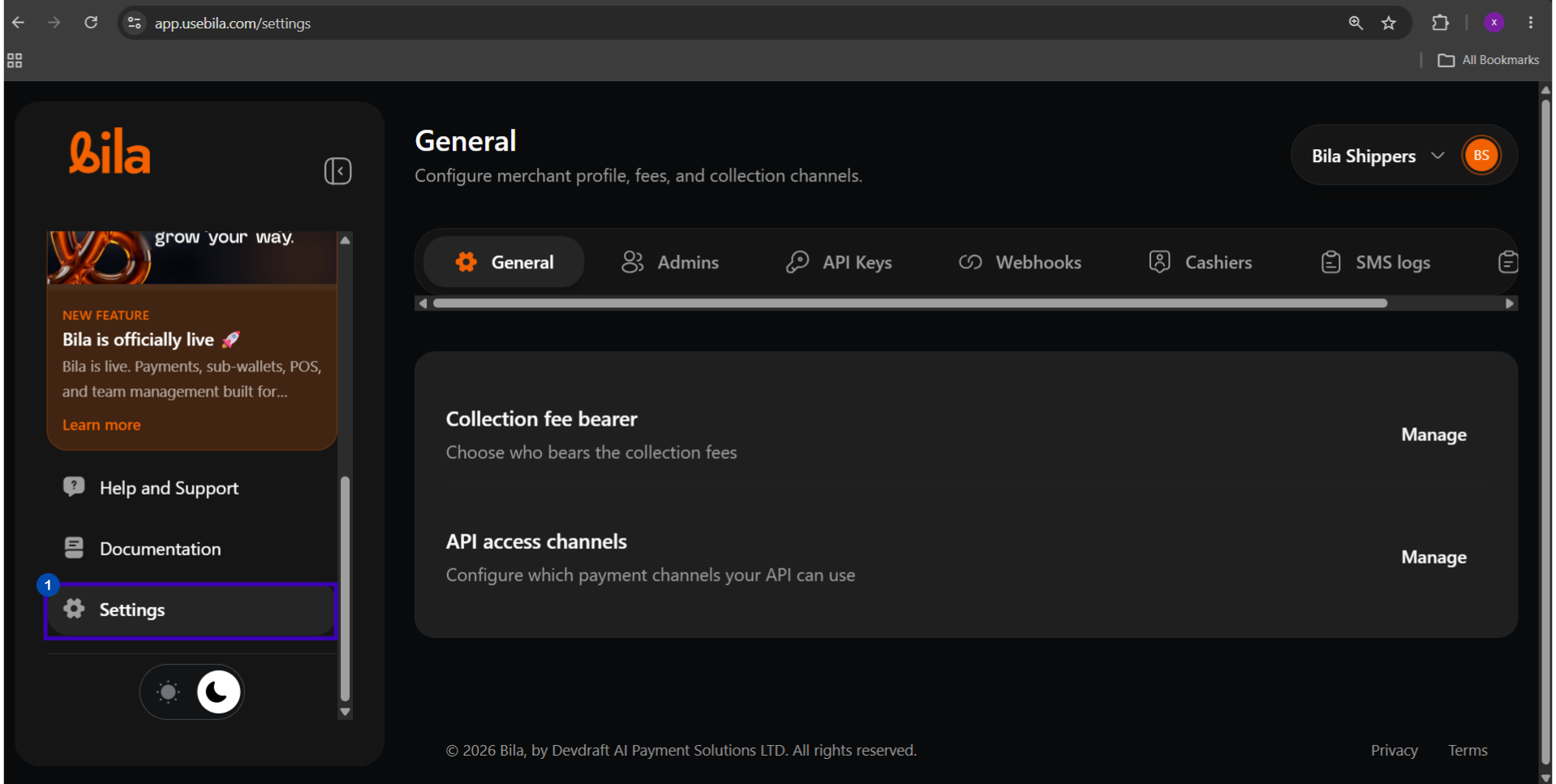 The General settings page displays two configurable sections:
| Section | What It Controls |
| ------------------------- | --------------------------------------------------- |
| **Collection fee bearer** | Who pays the fee when a customer sends you money |
| **API access channels** | Which payment channels your API integration can use |
***
## Step 2: Open the Collection Fee Bearer Panel
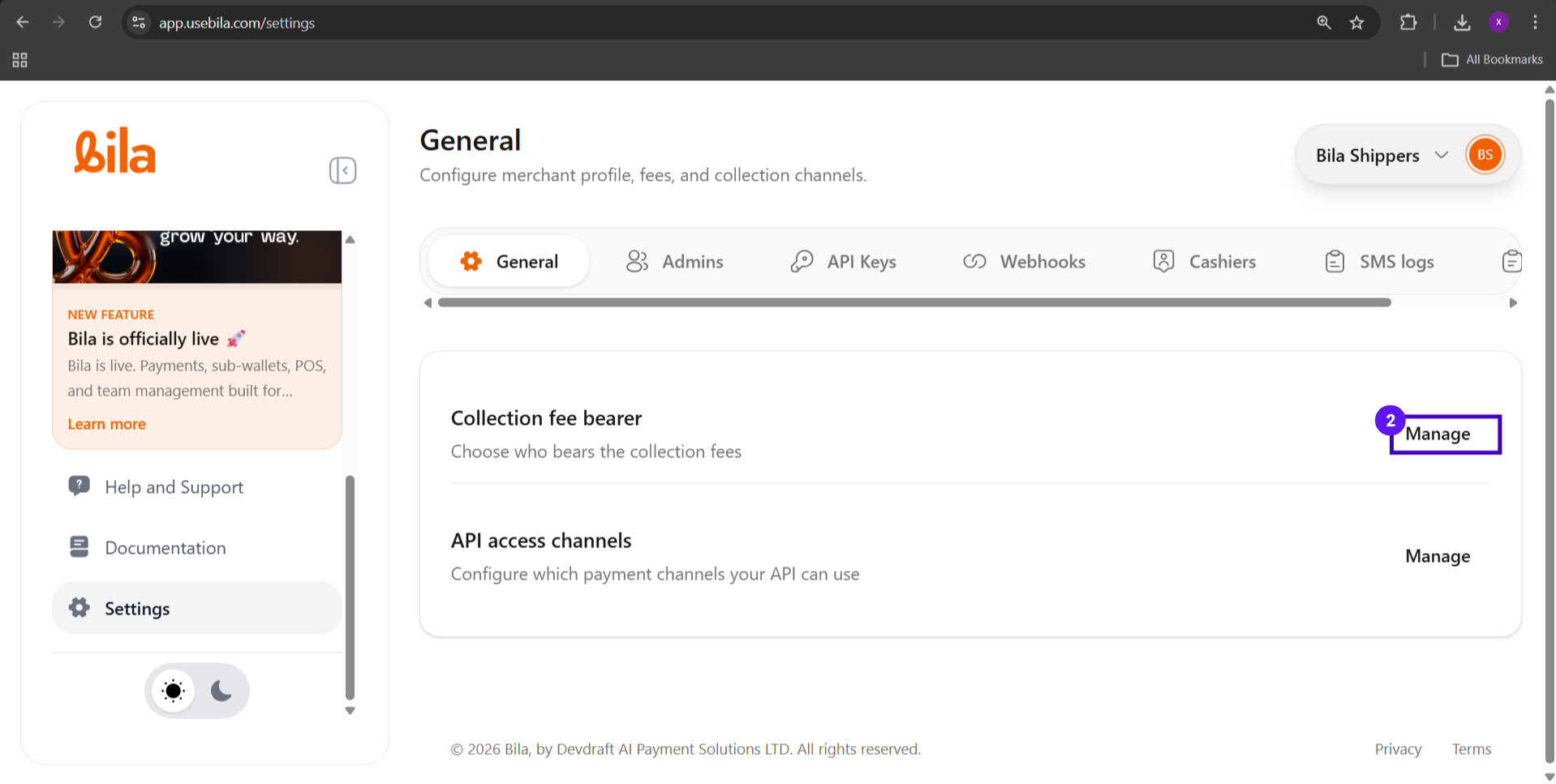
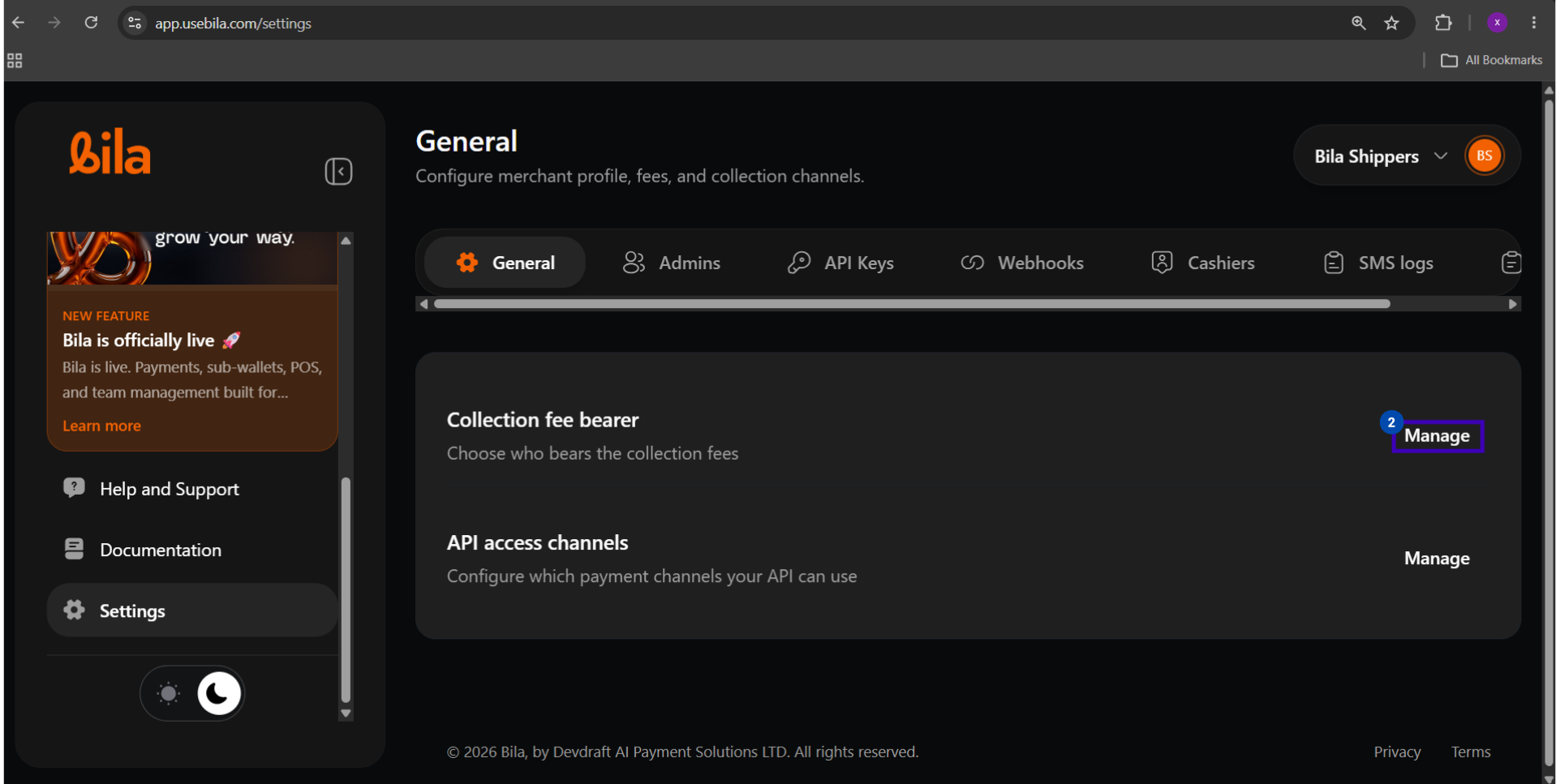
Under **Collection fee bearer**, click **Manage**.
The **Collection fees** panel slides open on the right side of the screen with three options to choose from.
The General settings page displays two configurable sections:
| Section | What It Controls |
| ------------------------- | --------------------------------------------------- |
| **Collection fee bearer** | Who pays the fee when a customer sends you money |
| **API access channels** | Which payment channels your API integration can use |
***
## Step 2: Open the Collection Fee Bearer Panel
Under **Collection fee bearer**, click **Manage**.
The **Collection fees** panel slides open on the right side of the screen with three options to choose from.
 ***
## Step 3: Choose Your Fee Bearer
Select the option that matches how you want fees handled on your account:
***
## Step 3: Choose Your Fee Bearer
Select the option that matches how you want fees handled on your account:
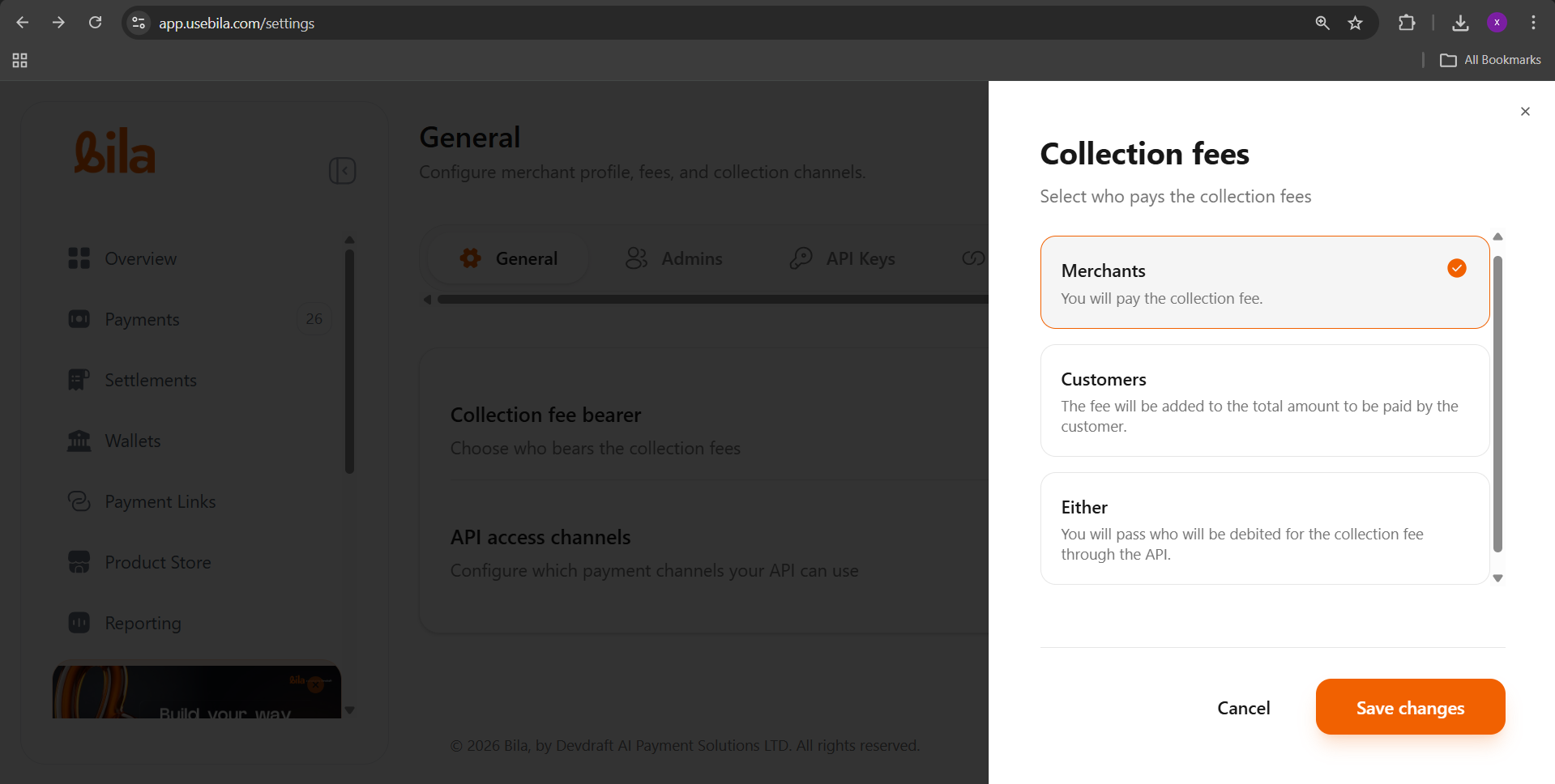
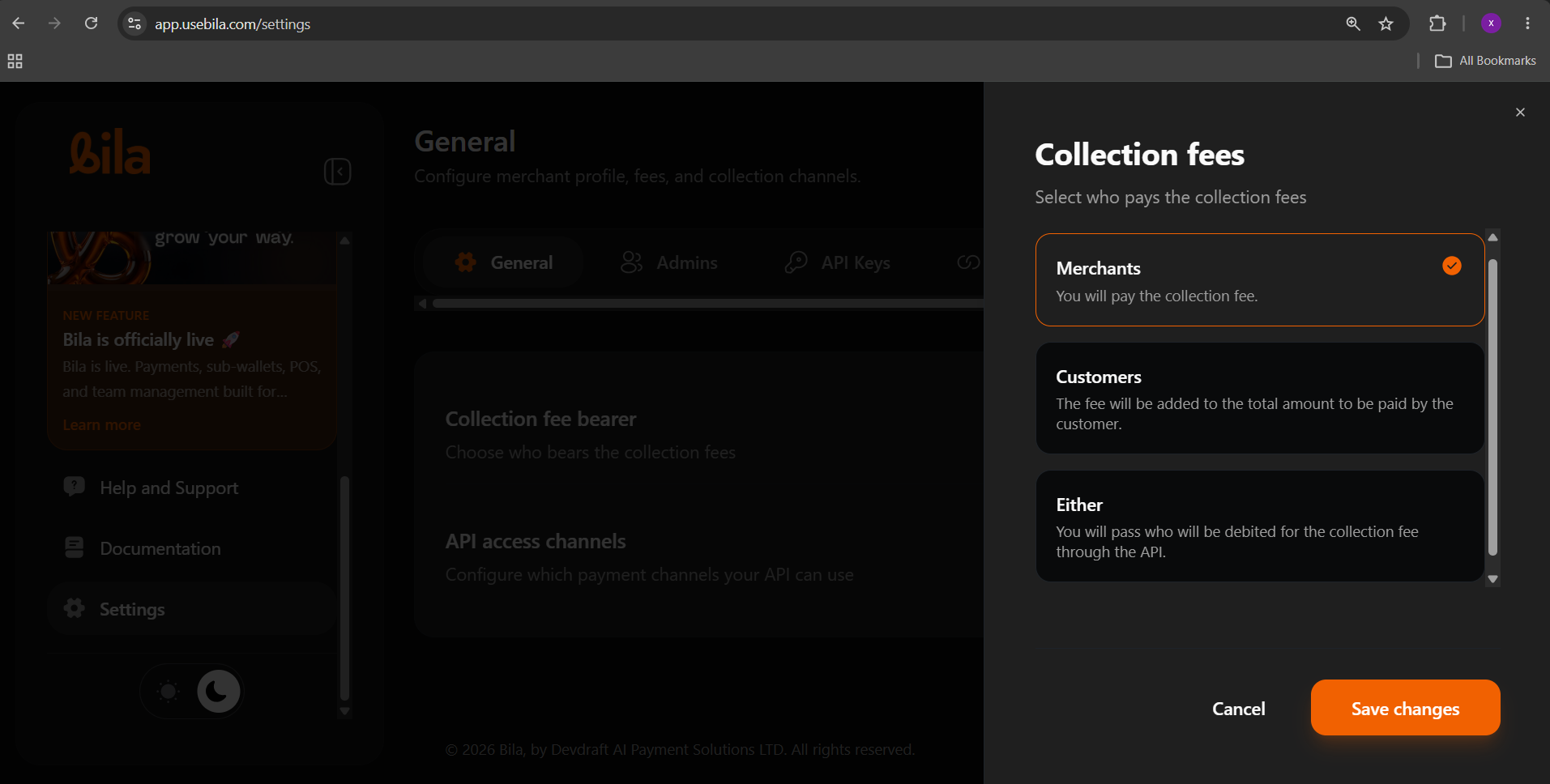 | Option | Who Pays the Fee | What Your Customer Pays |
| ------------- | ------------------------------- | --------------------------------------------- |
| **Merchants** | You - the business | Exactly the listed price |
| **Customers** | Your customer | Listed price plus the transaction fee |
| **Either** | Decided per transaction via API | Depends on what is passed in each API request |
***
### Merchants
You absorb the collection fee on every transaction. Bila deducts the fee from the amount you receive - your customer always pays exactly what is listed on your storefront or payment link.
**Example:**
| | Amount |
| -------------------- | ----------- |
| Customer pays | ZMW 1,000 |
| Bila fee (e.g. 1.5%) | ZMW 15 |
| **You receive** | **ZMW 985** |
This is the simplest setup and the Bila default. Choose this if you want a clean checkout experience where customers never see a fee line item.
***
### Customers
The collection fee is added on top of your listed price at checkout. Your customer pays the listed amount plus the fee - you receive the full listed price.
**Example:**
| | Amount |
| -------------------------- | ------------- |
| Listed price | ZMW 1,000 |
| Bila fee added (e.g. 1.5%) | ZMW 15 |
| **Customer pays** | **ZMW 1,015** |
| **You receive** | **ZMW 1,000** |
Choose this if your margins are tight and you need to receive the full listed price on every transaction. The fee will appear as a separate line item at checkout.
***
### Either
You pass who bears the fee on each individual API request - giving you full flexibility to decide per transaction. This option is designed for businesses that use the Bila API to initiate collections programmatically and need dynamic fee logic.
**Either** requires API integration. If you are not using the Bila API to initiate payments, choose **Merchants** or **Customers** instead.
***
## Step 4: Save Your Changes
Once you have selected your preferred option, click **Save changes**.
**Confirmation:** The panel closes and your new fee bearer setting is applied immediately to all future transactions.
This change takes effect on the very next transaction processed. It does not affect payments that have already been completed. If switching from **Merchants** to **Customers**, inform your team before saving - customers will see a fee line item added to their checkout total from this point forward.
***
## Fee Bearer Decision Guide
| Business Situation | Recommended Setting |
| ------------------------------------------------------------------------- | ------------------- |
| You want customers to pay exactly the listed price | **Merchants** |
| You want to always receive the full listed price - fees added at checkout | **Customers** |
| You use the Bila API and need different fee logic per transaction | **Either** |
| You are just getting started and want the simplest setup | **Merchants** |
***
## Troubleshooting
| Issue | What to Do |
| ------------------------------------------------------- | -------------------------------------------------------------------------------------------------------- |
| Fee bearer change is not reflecting on new transactions | Confirm you clicked **Save changes** - unsaved changes are discarded when the panel is closed |
| Customer is being charged an unexpected fee | Check whether your setting is **Customers** - the fee appears as a line item added to the checkout total |
| You need different fee rules per transaction | Switch to **Either** and configure fee logic per request through the Bila API |
| You are unsure what fee rate applies to your account | Contact Bila support - fee rates are set at the merchant account level |
***
## Next Steps
Control which payment channels your API integration can use for collections.
Manage who on your team can view and change fee settings.
| Option | Who Pays the Fee | What Your Customer Pays |
| ------------- | ------------------------------- | --------------------------------------------- |
| **Merchants** | You - the business | Exactly the listed price |
| **Customers** | Your customer | Listed price plus the transaction fee |
| **Either** | Decided per transaction via API | Depends on what is passed in each API request |
***
### Merchants
You absorb the collection fee on every transaction. Bila deducts the fee from the amount you receive - your customer always pays exactly what is listed on your storefront or payment link.
**Example:**
| | Amount |
| -------------------- | ----------- |
| Customer pays | ZMW 1,000 |
| Bila fee (e.g. 1.5%) | ZMW 15 |
| **You receive** | **ZMW 985** |
This is the simplest setup and the Bila default. Choose this if you want a clean checkout experience where customers never see a fee line item.
***
### Customers
The collection fee is added on top of your listed price at checkout. Your customer pays the listed amount plus the fee - you receive the full listed price.
**Example:**
| | Amount |
| -------------------------- | ------------- |
| Listed price | ZMW 1,000 |
| Bila fee added (e.g. 1.5%) | ZMW 15 |
| **Customer pays** | **ZMW 1,015** |
| **You receive** | **ZMW 1,000** |
Choose this if your margins are tight and you need to receive the full listed price on every transaction. The fee will appear as a separate line item at checkout.
***
### Either
You pass who bears the fee on each individual API request - giving you full flexibility to decide per transaction. This option is designed for businesses that use the Bila API to initiate collections programmatically and need dynamic fee logic.
**Either** requires API integration. If you are not using the Bila API to initiate payments, choose **Merchants** or **Customers** instead.
***
## Step 4: Save Your Changes
Once you have selected your preferred option, click **Save changes**.
**Confirmation:** The panel closes and your new fee bearer setting is applied immediately to all future transactions.
This change takes effect on the very next transaction processed. It does not affect payments that have already been completed. If switching from **Merchants** to **Customers**, inform your team before saving - customers will see a fee line item added to their checkout total from this point forward.
***
## Fee Bearer Decision Guide
| Business Situation | Recommended Setting |
| ------------------------------------------------------------------------- | ------------------- |
| You want customers to pay exactly the listed price | **Merchants** |
| You want to always receive the full listed price - fees added at checkout | **Customers** |
| You use the Bila API and need different fee logic per transaction | **Either** |
| You are just getting started and want the simplest setup | **Merchants** |
***
## Troubleshooting
| Issue | What to Do |
| ------------------------------------------------------- | -------------------------------------------------------------------------------------------------------- |
| Fee bearer change is not reflecting on new transactions | Confirm you clicked **Save changes** - unsaved changes are discarded when the panel is closed |
| Customer is being charged an unexpected fee | Check whether your setting is **Customers** - the fee appears as a line item added to the checkout total |
| You need different fee rules per transaction | Switch to **Either** and configure fee logic per request through the Bila API |
| You are unsure what fee rate applies to your account | Contact Bila support - fee rates are set at the merchant account level |
***
## Next Steps
Control which payment channels your API integration can use for collections.
Manage who on your team can view and change fee settings.